> ## Documentation Index
> Fetch the complete documentation index at: https://docs.nordlyslabs.com/llms.txt
> Use this file to discover all available pages before exploring further.
# Claude Code Integration
> Set up Claude Code with Nordlys's advanced AI model Nordlys model for intelligent model selection
Configure Claude Code to use Nordlys's Mixture of Models — our Mixture of Models automatically selects the best specialist while maintaining the same development experience.
**Get the best AI specialist for every prompt** with Nordlys Mixture of Models. Works
as a drop-in replacement for the Claude API.
## Get Your Nordlys API Key
[Sign up here](https://www.nordlyslabs.com/api-platform/orgs) to create an account and generate your API key.
## Quick Setup
```bash macOS/Linux theme={null}
curl -o claude-code.sh https://raw.githubusercontent.com/Nordlys-Labs/nordlys/main/scripts/installers/unix/claude-code.sh
chmod +x claude-code.sh
./claude-code.sh
```
```powershell Windows (PowerShell) theme={null}
iwr https://raw.githubusercontent.com/Nordlys-Labs/nordlys/main/scripts/installers/windows/claude-code.ps1 -OutFile claude-code.ps1; Set-ExecutionPolicy -Scope Process -ExecutionPolicy Bypass; .\claude-code.ps1
```
```bat Windows (cmd) theme={null}
curl -fsSL https://raw.githubusercontent.com/Nordlys-Labs/nordlys/main/scripts/installers/windows/claude-code.cmd -o claude-code.cmd
claude-code.cmd
```
```bash theme={null}
claude
```
Select "Yes" when prompted about using the API key.
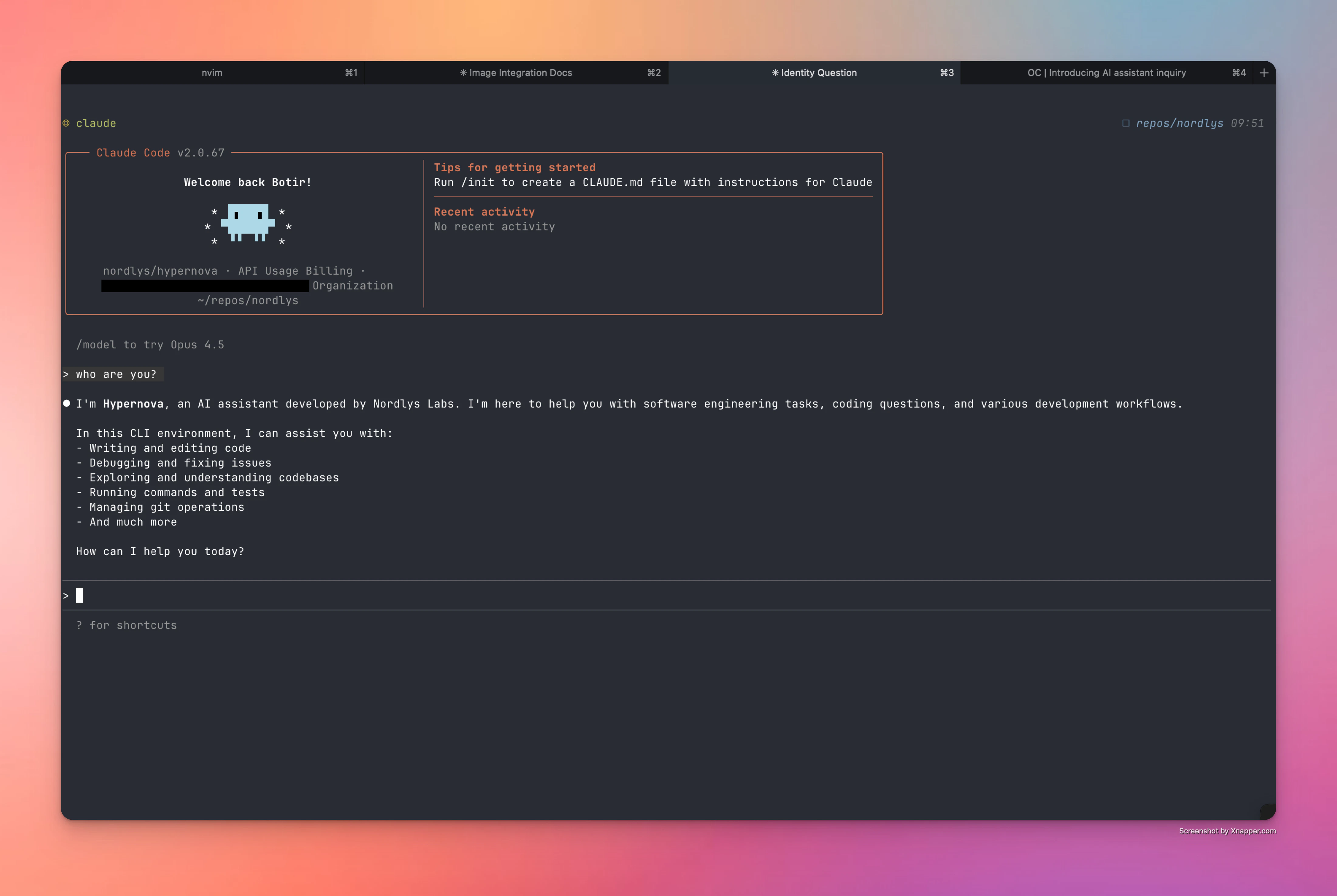
Ask "who are you?" to confirm Hypernova is active.
 ## Alternative Setup Methods
```bash Environment Variables theme={null}
export ANTHROPIC_BASE_URL=https://api.nordlyslabs.com
export ANTHROPIC_AUTH_TOKEN=your-nordlys-api-key
export ANTHROPIC_MODEL=nordlys/hypernova
export ANTHROPIC_SMALL_FAST_MODEL=nordlys/hypernova
# Manual model overrides (override all for complete control)
export ANTHROPIC_DEFAULT_OPUS_MODEL=nordlys/hypernova # Model for opus, or opusplan when Plan Mode is active
export ANTHROPIC_DEFAULT_SONNET_MODEL=nordlys/hypernova # Model for sonnet, or opusplan when Plan Mode is not active
export ANTHROPIC_DEFAULT_HAIKU_MODEL=nordlys/hypernova # Model for haiku, or background functionality
export CLAUDE_CODE_SUBAGENT_MODEL=nordlys/hypernova # Model for subagents
```
```powershell Environment Variables (PowerShell) theme={null}
$env:ANTHROPIC_BASE_URL="https://api.nordlyslabs.com"
$env:ANTHROPIC_AUTH_TOKEN="your-nordlys-api-key"
$env:ANTHROPIC_MODEL="nordlys/hypernova"
$env:ANTHROPIC_SMALL_FAST_MODEL="nordlys/hypernova"
$env:ANTHROPIC_DEFAULT_OPUS_MODEL="nordlys/hypernova"
$env:ANTHROPIC_DEFAULT_SONNET_MODEL="nordlys/hypernova"
$env:ANTHROPIC_DEFAULT_HAIKU_MODEL="nordlys/hypernova"
$env:CLAUDE_CODE_SUBAGENT_MODEL="nordlys/hypernova"
setx ANTHROPIC_AUTH_TOKEN "your-nordlys-api-key"
```
```json Manual Settings File theme={null}
{
"env": {
"ANTHROPIC_AUTH_TOKEN": "your-nordlys-api-key",
"ANTHROPIC_BASE_URL": "https://api.nordlyslabs.com",
"ANTHROPIC_MODEL": "nordlys/hypernova",
"ANTHROPIC_SMALL_FAST_MODEL": "nordlys/hypernova",
"ANTHROPIC_DEFAULT_OPUS_MODEL": "nordlys/hypernova",
"ANTHROPIC_DEFAULT_SONNET_MODEL": "nordlys/hypernova",
"ANTHROPIC_DEFAULT_HAIKU_MODEL": "nordlys/hypernova",
"CLAUDE_CODE_SUBAGENT_MODEL": "nordlys/hypernova"
}
}
```
```bash CI/Automation theme={null}
export NORDLYS_API_KEY='your-api-key'
curl -fsSL https://raw.githubusercontent.com/Nordlys-Labs/nordlys/main/scripts/installers/unix/claude-code.sh | bash
```
```powershell CI/Automation (PowerShell) theme={null}
$env:NORDLYS_API_KEY="your-api-key"
setx NORDLYS_API_KEY "your-api-key"
iwr https://raw.githubusercontent.com/Nordlys-Labs/nordlys/main/scripts/installers/windows/claude-code.ps1 -OutFile claude-code.ps1; Set-ExecutionPolicy -Scope Process -ExecutionPolicy Bypass; .\claude-code.ps1
```
```bat CI/Automation (cmd) theme={null}
set NORDLYS_API_KEY=your-api-key
curl -fsSL https://raw.githubusercontent.com/Nordlys-Labs/nordlys/main/scripts/installers/windows/claude-code.cmd -o claude-code.cmd
claude-code.cmd
```
## Troubleshooting
* Verify your API key at [nordlyslabs.com/api-platform/orgs](https://www.nordlyslabs.com/api-platform/orgs)
* Check that `ANTHROPIC_BASE_URL` is set to `https://api.nordlyslabs.com/v1`
* Restart Claude Code after configuration changes
* Regenerate your API key from the Nordlys dashboard
* Ensure you're using your Nordlys API key, not the original Claude API key
* Check for extra spaces or characters in the configuration file
## Next Steps
Track your cost savings and usage analytics in real-time
Learn about Nordlys's API capabilities and advanced features
Integrate Nordlys into your applications and workflows
Troubleshooting guides and support resources
***
**Was this page helpful?** Contact us at
[info@llmadaptive.uk](mailto:info@llmadaptive.uk) for feedback or assistance
with your Claude Code integration.
## Alternative Setup Methods
```bash Environment Variables theme={null}
export ANTHROPIC_BASE_URL=https://api.nordlyslabs.com
export ANTHROPIC_AUTH_TOKEN=your-nordlys-api-key
export ANTHROPIC_MODEL=nordlys/hypernova
export ANTHROPIC_SMALL_FAST_MODEL=nordlys/hypernova
# Manual model overrides (override all for complete control)
export ANTHROPIC_DEFAULT_OPUS_MODEL=nordlys/hypernova # Model for opus, or opusplan when Plan Mode is active
export ANTHROPIC_DEFAULT_SONNET_MODEL=nordlys/hypernova # Model for sonnet, or opusplan when Plan Mode is not active
export ANTHROPIC_DEFAULT_HAIKU_MODEL=nordlys/hypernova # Model for haiku, or background functionality
export CLAUDE_CODE_SUBAGENT_MODEL=nordlys/hypernova # Model for subagents
```
```powershell Environment Variables (PowerShell) theme={null}
$env:ANTHROPIC_BASE_URL="https://api.nordlyslabs.com"
$env:ANTHROPIC_AUTH_TOKEN="your-nordlys-api-key"
$env:ANTHROPIC_MODEL="nordlys/hypernova"
$env:ANTHROPIC_SMALL_FAST_MODEL="nordlys/hypernova"
$env:ANTHROPIC_DEFAULT_OPUS_MODEL="nordlys/hypernova"
$env:ANTHROPIC_DEFAULT_SONNET_MODEL="nordlys/hypernova"
$env:ANTHROPIC_DEFAULT_HAIKU_MODEL="nordlys/hypernova"
$env:CLAUDE_CODE_SUBAGENT_MODEL="nordlys/hypernova"
setx ANTHROPIC_AUTH_TOKEN "your-nordlys-api-key"
```
```json Manual Settings File theme={null}
{
"env": {
"ANTHROPIC_AUTH_TOKEN": "your-nordlys-api-key",
"ANTHROPIC_BASE_URL": "https://api.nordlyslabs.com",
"ANTHROPIC_MODEL": "nordlys/hypernova",
"ANTHROPIC_SMALL_FAST_MODEL": "nordlys/hypernova",
"ANTHROPIC_DEFAULT_OPUS_MODEL": "nordlys/hypernova",
"ANTHROPIC_DEFAULT_SONNET_MODEL": "nordlys/hypernova",
"ANTHROPIC_DEFAULT_HAIKU_MODEL": "nordlys/hypernova",
"CLAUDE_CODE_SUBAGENT_MODEL": "nordlys/hypernova"
}
}
```
```bash CI/Automation theme={null}
export NORDLYS_API_KEY='your-api-key'
curl -fsSL https://raw.githubusercontent.com/Nordlys-Labs/nordlys/main/scripts/installers/unix/claude-code.sh | bash
```
```powershell CI/Automation (PowerShell) theme={null}
$env:NORDLYS_API_KEY="your-api-key"
setx NORDLYS_API_KEY "your-api-key"
iwr https://raw.githubusercontent.com/Nordlys-Labs/nordlys/main/scripts/installers/windows/claude-code.ps1 -OutFile claude-code.ps1; Set-ExecutionPolicy -Scope Process -ExecutionPolicy Bypass; .\claude-code.ps1
```
```bat CI/Automation (cmd) theme={null}
set NORDLYS_API_KEY=your-api-key
curl -fsSL https://raw.githubusercontent.com/Nordlys-Labs/nordlys/main/scripts/installers/windows/claude-code.cmd -o claude-code.cmd
claude-code.cmd
```
## Troubleshooting
* Verify your API key at [nordlyslabs.com/api-platform/orgs](https://www.nordlyslabs.com/api-platform/orgs)
* Check that `ANTHROPIC_BASE_URL` is set to `https://api.nordlyslabs.com/v1`
* Restart Claude Code after configuration changes
* Regenerate your API key from the Nordlys dashboard
* Ensure you're using your Nordlys API key, not the original Claude API key
* Check for extra spaces or characters in the configuration file
## Next Steps
Track your cost savings and usage analytics in real-time
Learn about Nordlys's API capabilities and advanced features
Integrate Nordlys into your applications and workflows
Troubleshooting guides and support resources
***
**Was this page helpful?** Contact us at
[info@llmadaptive.uk](mailto:info@llmadaptive.uk) for feedback or assistance
with your Claude Code integration.