> ## Documentation Index
> Fetch the complete documentation index at: https://docs.nordlyslabs.com/llms.txt
> Use this file to discover all available pages before exploring further.
# Cursor Integration
> Set up Cursor IDE with Nordlys's Mixture of Models model for lab-grade quality and lower cost
Configure Cursor IDE to use Nordlys's Mixture of Models model for high-quality coding assistance.
**Get the best AI specialist for every prompt** with a Mixture of Models model. Works as a drop-in replacement in Cursor IDE.
## Get Your Nordlys API Key
[Sign up here](https://nordlyslabs.com/api-platform/orgs) to create an account and generate your API key.
## Quick Setup
Download and install Cursor IDE from the official website.
[Download Cursor](https://cursor.com/download)
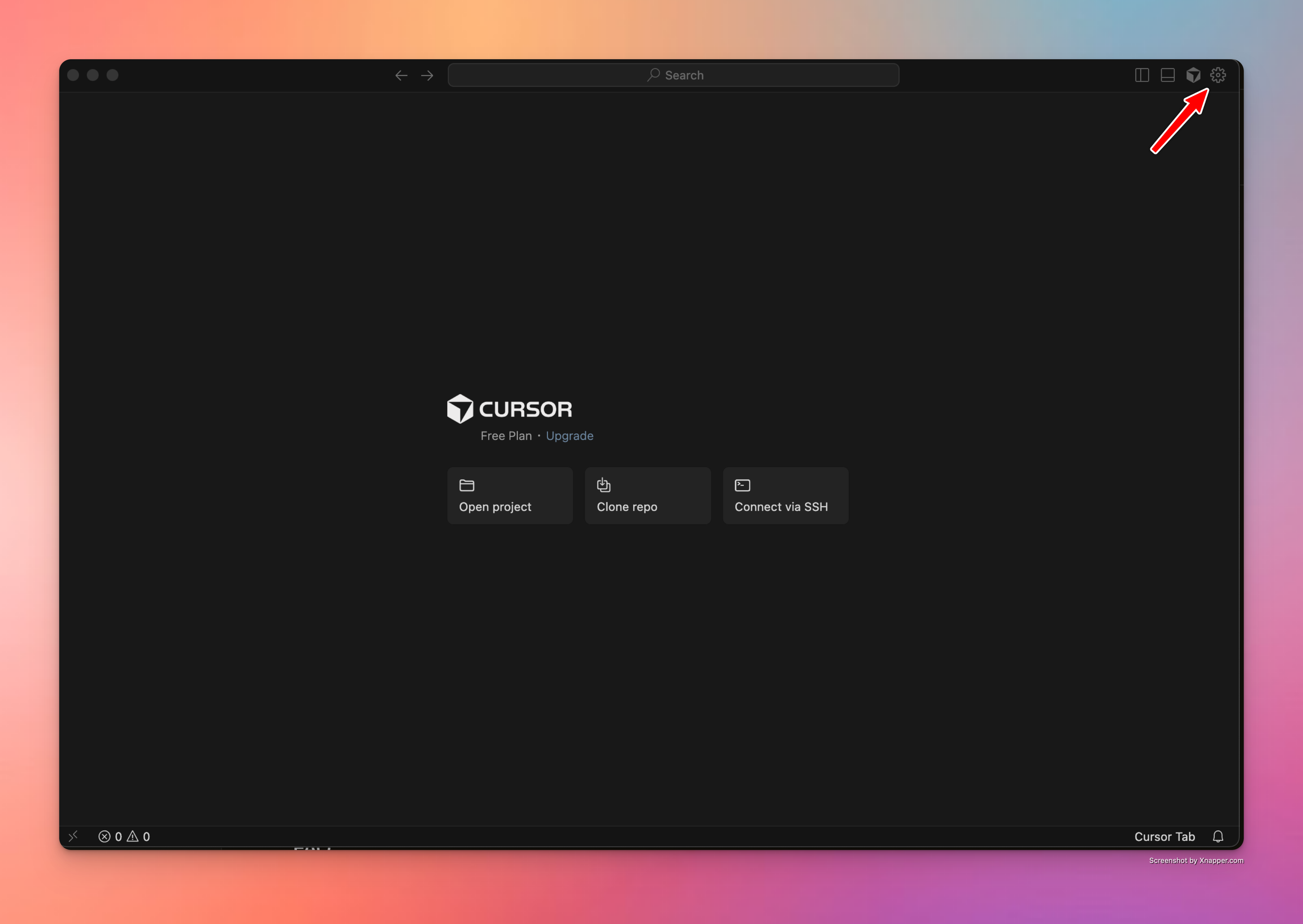
Click the settings icon (⚙️) in the top-right corner of Cursor to open Settings.
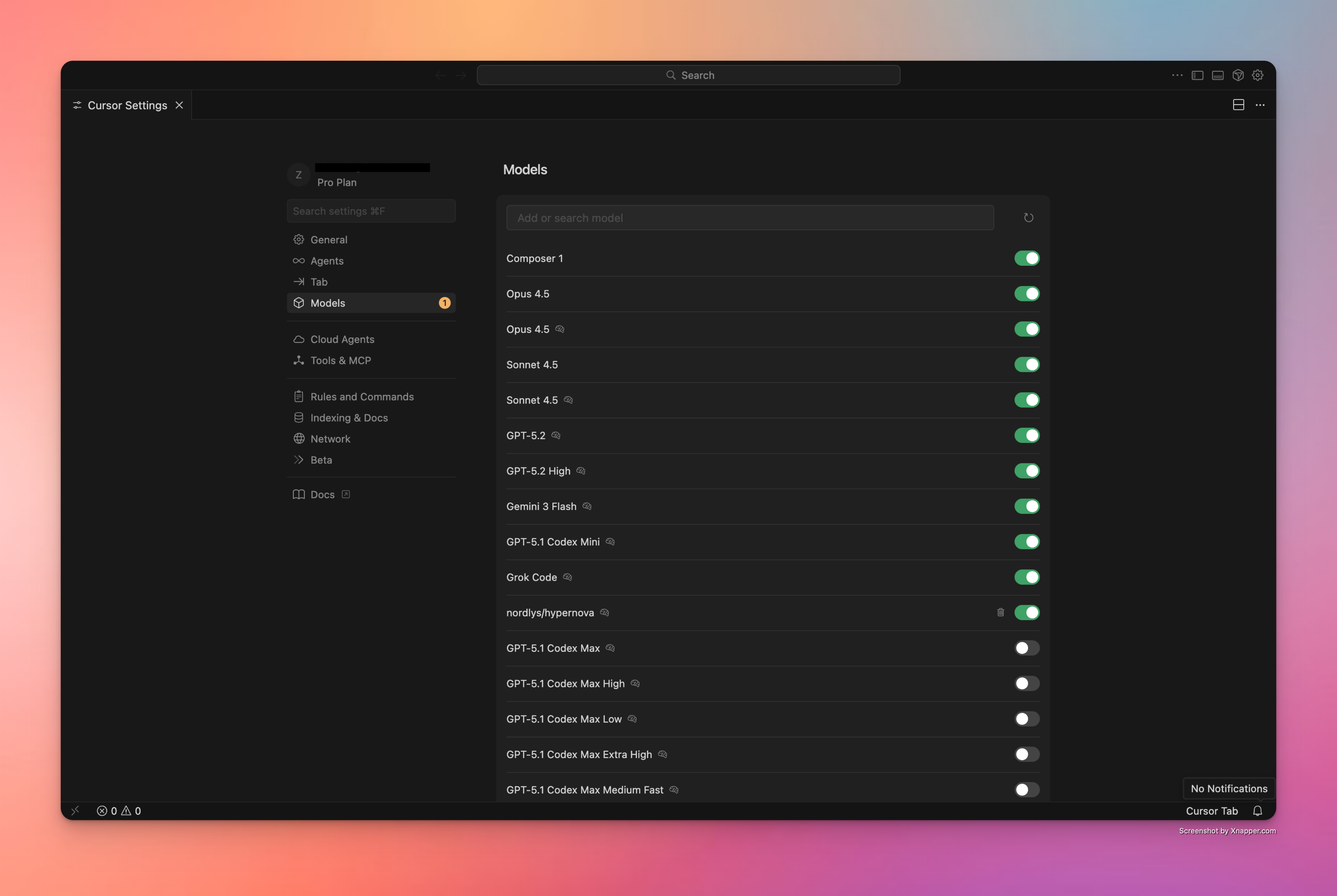
 In the left sidebar, click on **Models** to view available AI models.
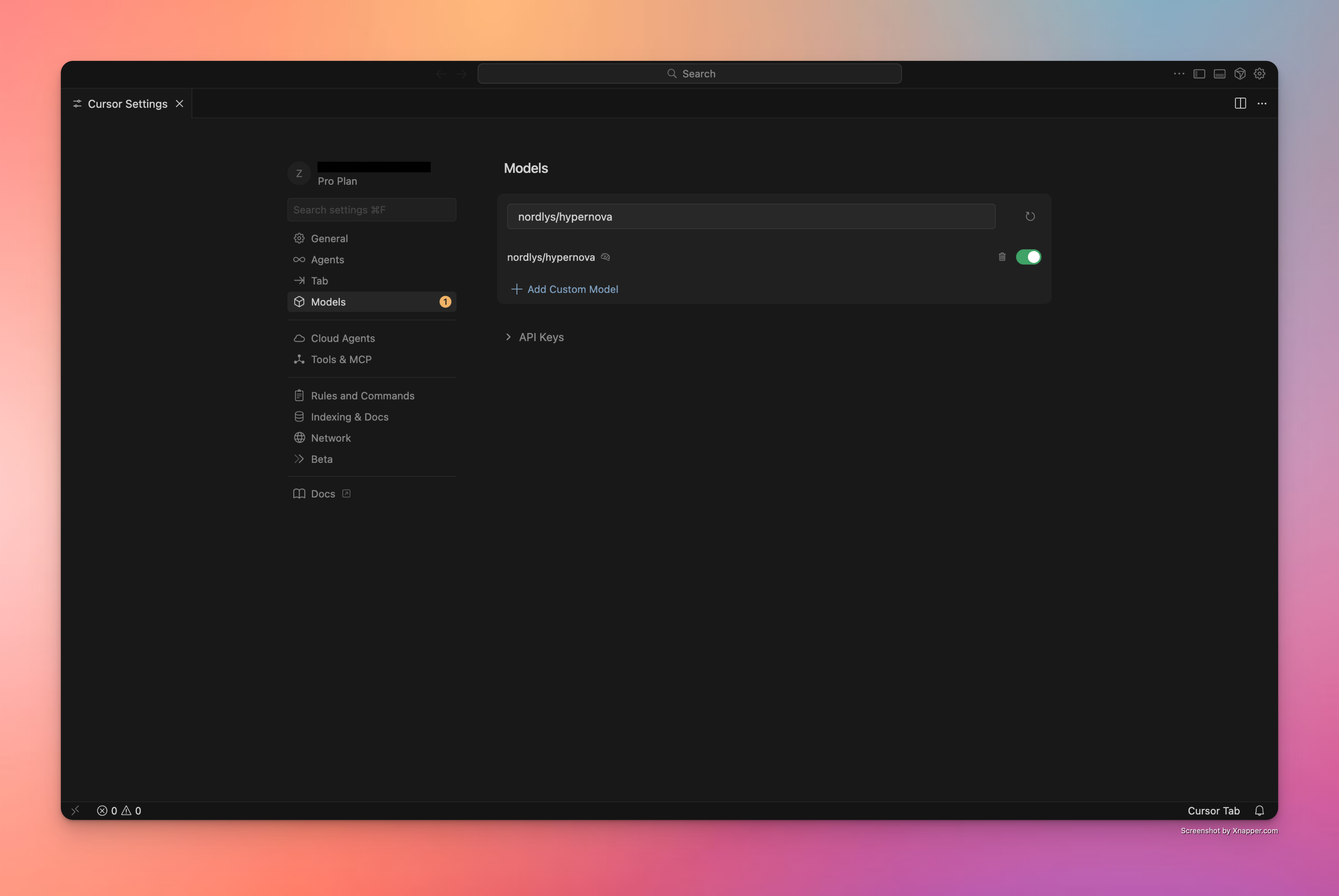
 Click **+ Add Custom Model** and enter `nordlys/hypernova` as the model name. Enable the toggle to activate it.
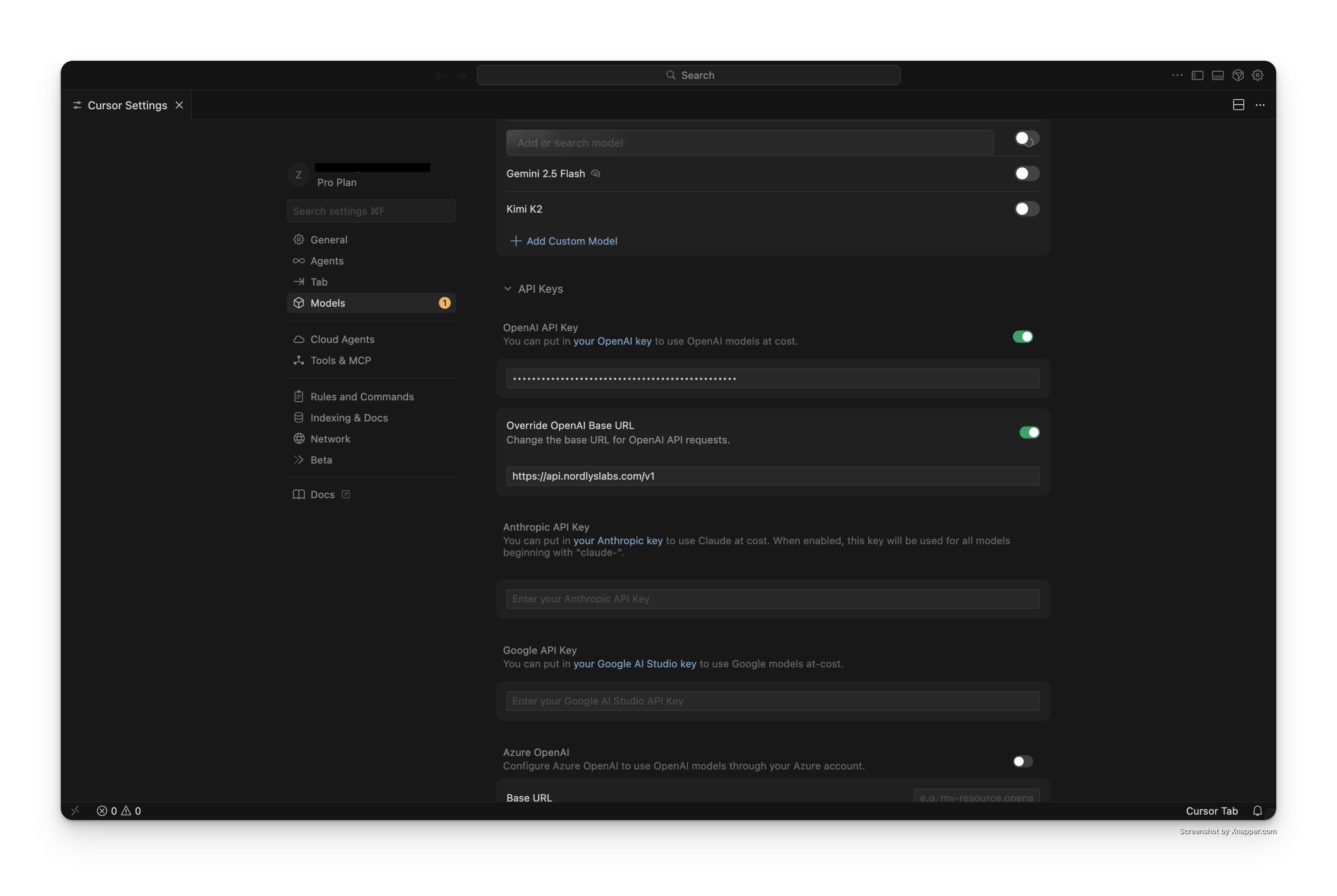
 Expand the **API Keys** section and configure the following:
1. Enable the **OpenAI API Key** toggle
2. Enter your Nordlys API key ([get it here](https://nordlyslabs.com/api-platform/orgs))
3. Enable **Override OpenAI Base URL**
4. Enter the base URL:
```text theme={null}
https://api.nordlyslabs.com/v1
```
Expand the **API Keys** section and configure the following:
1. Enable the **OpenAI API Key** toggle
2. Enter your Nordlys API key ([get it here](https://nordlyslabs.com/api-platform/orgs))
3. Enable **Override OpenAI Base URL**
4. Enter the base URL:
```text theme={null}
https://api.nordlyslabs.com/v1
```
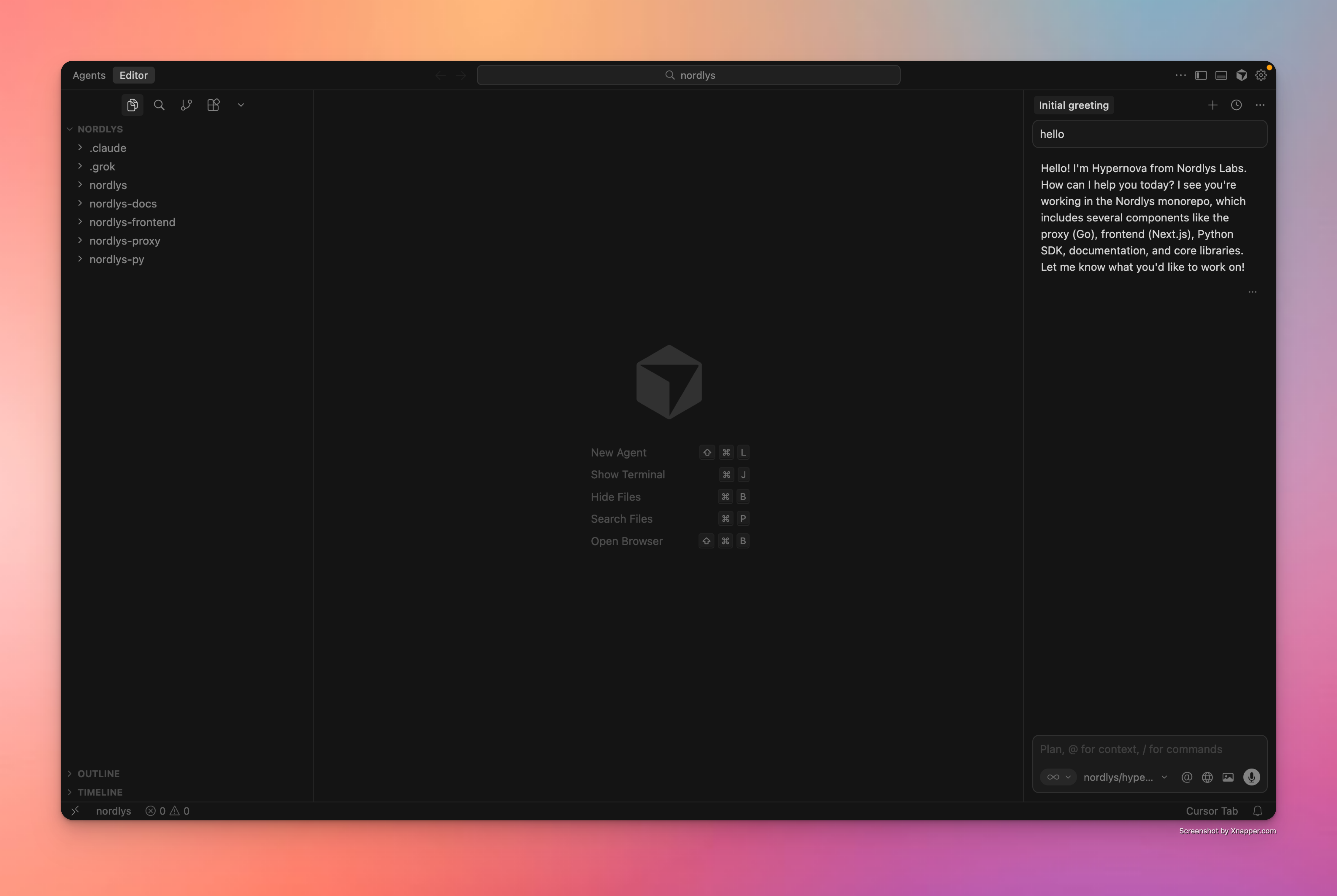
 Close settings and start using Cursor with the Nordlys model.
 ## Configuration Details
```text OpenAI API Configuration theme={null}
Model: nordlys/hypernova
OpenAI API Key: your-nordlys-api-key
Override OpenAI Base URL: https://api.nordlyslabs.com/v1
```
## Features with Nordlys
* **Mixture of Models Activation**: The right specialists activate per prompt
* **Cost Optimization**: Intelligent model selection for better value
* **Same Experience**: No changes to your Cursor workflow
* **Real-time Analytics**: Track usage and savings in the Nordlys dashboard
## Troubleshooting
* Verify your API key at [nordlyslabs.com/api-platform/orgs](https://nordlyslabs.com/api-platform/orgs)
* Check that Base URL is set to `https://api.nordlyslabs.com/v1`
* Restart Cursor after configuration changes
* Ensure the API Key toggle is enabled
* Add `nordlys/hypernova` as a custom model using **+ Add Custom Model**
* Ensure the model toggle is enabled after adding
* Test with a simple code completion request after setup
* Regenerate your API key from the Nordlys dashboard if needed
* Ensure you're using your Nordlys API key, not OpenAI/Anthropic keys
* Check for extra spaces or characters in the API key field
* Verify the Base URL override is properly enabled
## Next Steps
Track your cost savings and usage analytics in real-time
Learn about Nordlys's API capabilities and advanced features
Explore other AI development tools with Nordlys integration
Troubleshooting guides and support resources
***
**Was this page helpful?** Contact us at [info@llmadaptive.uk](mailto:info@llmadaptive.uk) for feedback or assistance with your Cursor integration.
## Configuration Details
```text OpenAI API Configuration theme={null}
Model: nordlys/hypernova
OpenAI API Key: your-nordlys-api-key
Override OpenAI Base URL: https://api.nordlyslabs.com/v1
```
## Features with Nordlys
* **Mixture of Models Activation**: The right specialists activate per prompt
* **Cost Optimization**: Intelligent model selection for better value
* **Same Experience**: No changes to your Cursor workflow
* **Real-time Analytics**: Track usage and savings in the Nordlys dashboard
## Troubleshooting
* Verify your API key at [nordlyslabs.com/api-platform/orgs](https://nordlyslabs.com/api-platform/orgs)
* Check that Base URL is set to `https://api.nordlyslabs.com/v1`
* Restart Cursor after configuration changes
* Ensure the API Key toggle is enabled
* Add `nordlys/hypernova` as a custom model using **+ Add Custom Model**
* Ensure the model toggle is enabled after adding
* Test with a simple code completion request after setup
* Regenerate your API key from the Nordlys dashboard if needed
* Ensure you're using your Nordlys API key, not OpenAI/Anthropic keys
* Check for extra spaces or characters in the API key field
* Verify the Base URL override is properly enabled
## Next Steps
Track your cost savings and usage analytics in real-time
Learn about Nordlys's API capabilities and advanced features
Explore other AI development tools with Nordlys integration
Troubleshooting guides and support resources
***
**Was this page helpful?** Contact us at [info@llmadaptive.uk](mailto:info@llmadaptive.uk) for feedback or assistance with your Cursor integration.