> ## Documentation Index
> Fetch the complete documentation index at: https://docs.nordlyslabs.com/llms.txt
> Use this file to discover all available pages before exploring further.
# Gemini CLI Integration
> Configure Gemini CLI with Nordlys's Mixture of Models model for lab-grade quality and lower cost
Configure Gemini CLI to use Nordlys's Mixture of Models model.
**Mixture of Models model** with prompt‑activated specialists. Works as a drop-in replacement for Gemini CLI's API backend with lab-grade quality and cost control.
## Benefits of Using Gemini CLI with Nordlys
When you integrate Gemini CLI with Nordlys, you unlock powerful capabilities:
* **Mixture of Models Activation**: The right specialists activate per prompt
* **Cost Optimization**: Lower costs without sacrificing quality
* **Consistent Quality**: Stable outputs across coding tasks
* **Usage Analytics**: Monitor model usage, costs, and performance in real-time
* **Simplified Configuration**: Single API key for all Gemini model variants
## Get Your Nordlys API Key
[Sign up here](https://www.nordlyslabs.com/api-platform/orgs) to create an account and generate your API key.
## Quick Setup
```bash macOS/Linux theme={null}
curl -fsSL https://raw.githubusercontent.com/Nordlys-Labs/nordlys/main/scripts/installers/unix/gemini-cli.sh | bash
```
```powershell Windows (PowerShell) theme={null}
iwr -useb https://raw.githubusercontent.com/Nordlys-Labs/nordlys/main/scripts/installers/windows/gemini-cli.ps1 | iex
```
```bat Windows (cmd) theme={null}
curl -fsSL https://raw.githubusercontent.com/Nordlys-Labs/nordlys/main/scripts/installers/windows/gemini-cli.cmd -o gemini-cli.cmd
gemini-cli.cmd
```
The installer will automatically:
* Install Gemini CLI if not present (via npm)
* Configure environment variables for Nordlys Nordlys model
* Add configuration to your shell profile (\~/.bashrc, \~/.zshrc, etc.)
* Verify the installation
```bash theme={null}
gemini --version
echo $GEMINI_API_KEY
echo $GOOGLE_GEMINI_BASE_URL
```
```bash theme={null}
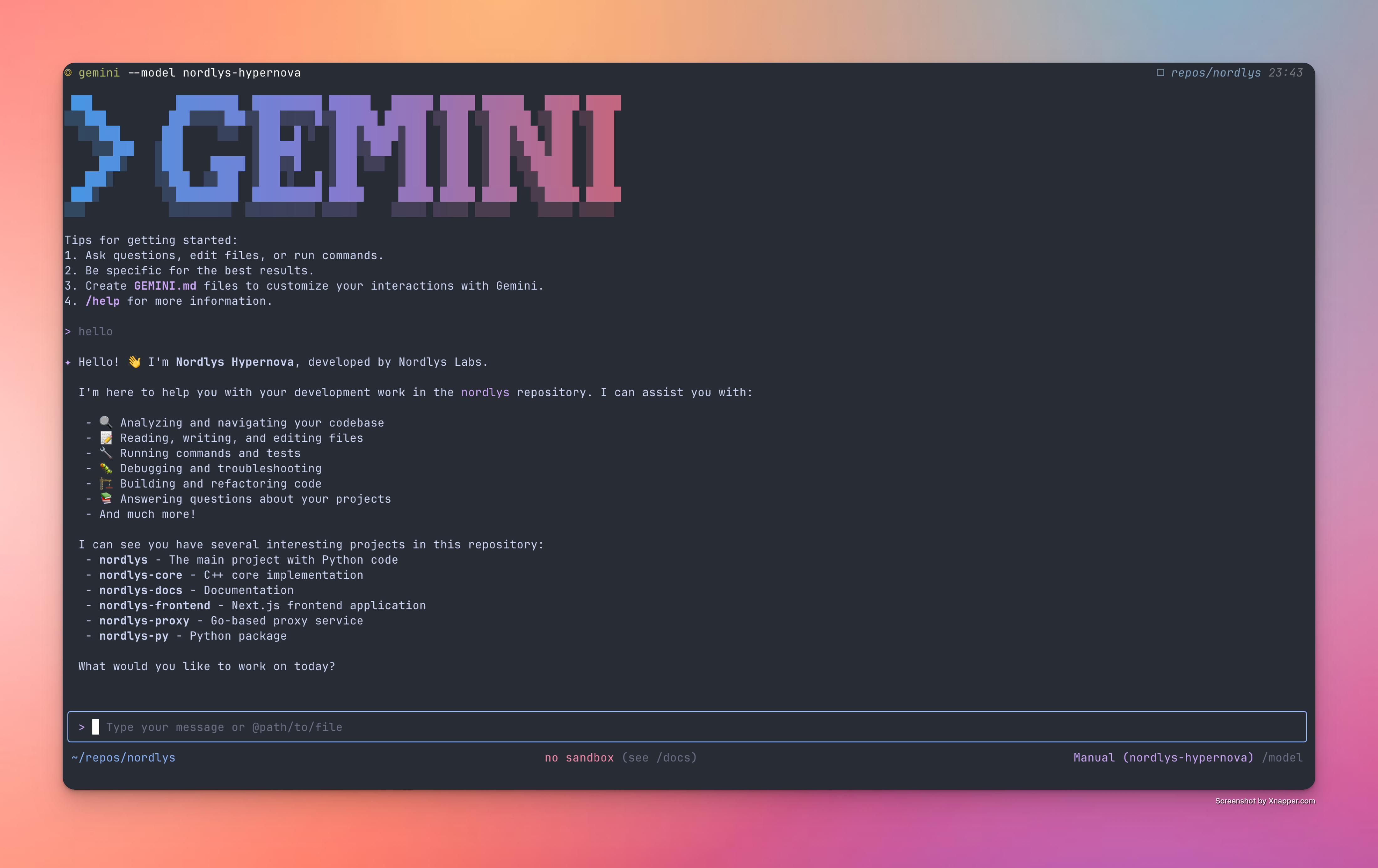
gemini
```
Nordlys will activate the right specialists for the task.
 ## Manual Installation
If you prefer to set up Gemini CLI manually or need more control over the installation process:
### Step 1: Install Gemini CLI
```bash theme={null}
npm install -g @google/gemini-cli
```
### Step 2: Configure Environment Variables
```bash Bash/Zsh (~/.bashrc or ~/.zshrc) theme={null}
# Gemini CLI with Nordlys AI model API Configuration
export GEMINI_API_KEY="your-nordlys-api-key-here"
export GOOGLE_GEMINI_BASE_URL="https://api.nordlyslabs.com/v1beta"
```
```fish Fish Shell (~/.config/fish/config.fish) theme={null}
# Gemini CLI with Nordlys AI model API Configuration
set -x GEMINI_API_KEY "your-nordlys-api-key-here"
set -x GOOGLE_GEMINI_BASE_URL "https://api.nordlyslabs.com/v1beta"
```
```powershell Windows (PowerShell) theme={null}
$env:GEMINI_API_KEY="your-nordlys-api-key-here"
$env:GOOGLE_GEMINI_BASE_URL="https://api.nordlyslabs.com/v1beta"
setx GEMINI_API_KEY "your-nordlys-api-key-here"
setx GOOGLE_GEMINI_BASE_URL "https://api.nordlyslabs.com/v1beta"
```
### Step 3: Apply Configuration
```bash theme={null}
# For Bash/Zsh
source ~/.bashrc # or ~/.zshrc
# For Fish
source ~/.config/fish/config.fish
# Or restart your terminal
```
### Step 4: Verify Installation
```bash theme={null}
gemini --version
gemini
```
## Alternative Setup Methods
```bash Environment Variable Method theme={null}
export NORDLYS_API_KEY='your-api-key-here'
curl -fsSL https://raw.githubusercontent.com/Nordlys-Labs/nordlys/main/scripts/installers/unix/gemini-cli.sh | bash
# The installer will automatically configure your shell
```
```powershell Environment Variable Method (PowerShell) theme={null}
$env:NORDLYS_API_KEY="your-api-key-here"
setx NORDLYS_API_KEY "your-api-key-here"
iwr -useb https://raw.githubusercontent.com/Nordlys-Labs/nordlys/main/scripts/installers/windows/gemini-cli.ps1 | iex
```
```bat Environment Variable Method (cmd) theme={null}
set NORDLYS_API_KEY=your-api-key-here
curl -fsSL https://raw.githubusercontent.com/Nordlys-Labs/nordlys/main/scripts/installers/windows/gemini-cli.cmd -o gemini-cli.cmd
gemini-cli.cmd
```
```bash Interactive Installation theme={null}
curl -o gemini-cli.sh https://raw.githubusercontent.com/Nordlys-Labs/nordlys/main/scripts/installers/unix/gemini-cli.sh
chmod +x gemini-cli.sh
./gemini-cli.sh
# Follow the interactive prompts
```
## Advanced Configuration
### Model Selection
Set the model ID explicitly when needed:
```bash Nordlys Model (Recommended) theme={null}
export GEMINI_MODEL='nordlys/hypernova'
gemini "analyze this codebase"
```
## Usage Examples
```bash Interactive Chat theme={null}
# Start interactive chat session
gemini
# Or with a specific prompt
gemini "help me debug this code"
```
```bash Code Assistance theme={null}
# Generate code
gemini "create a React component for user authentication"
# Explain code
gemini "explain how async/await works in JavaScript"
# Debug code
gemini "why is my Python script throwing a TypeError?"
```
```bash Quick Tasks theme={null}
# Get quick answers
gemini "what's the difference between let and const?"
# Generate documentation
gemini "write documentation for this API endpoint"
# Code review
gemini "review this function for potential bugs"
```
## Troubleshooting
**Problem**: Gemini CLI installation fails
**Solutions**:
* Ensure Node.js 18+ is installed: `node --version`
* Install Node.js if needed:
```bash theme={null}
# Using nvm (recommended)
curl -o- https://raw.githubusercontent.com/nvm-sh/nvm/v0.40.3/install.sh | bash
nvm install 22
```
* Check npm permissions: `npm config get prefix`
* Try with sudo (not recommended): `sudo npm install -g @google/gemini-cli`
**Problem**: "Unauthorized" or "Invalid API key" errors
**Solutions**:
1. Verify your API key at [nordlyslabs.com/api-platform/orgs](https://www.nordlyslabs.com/api-platform/orgs)
2. Check environment variables are set:
```bash theme={null}
echo $GEMINI_API_KEY
echo $GOOGLE_GEMINI_BASE_URL
```
3. Ensure variables are exported in your shell config:
```bash theme={null}
# Bash/Zsh
source ~/.bashrc # or ~/.zshrc
# Fish
source ~/.config/fish/config.fish
```
4. Restart your terminal if changes were made to shell config
5. Verify the base URL is correct: `https://api.nordlyslabs.com/v1`
**Problem**: Cannot connect to Nordlys API
**Solutions**:
* Check internet connectivity
* Verify base URL is correct: `echo $GOOGLE_GEMINI_BASE_URL`
* Test API directly:
```bash theme={null}
curl -X POST https://api.nordlyslabs.com/v1/chat/completions \
-H "Authorization: Bearer $GEMINI_API_KEY" \
-H "Content-Type: application/json" \
-d '{
"model": "nordlys/hypernova",
"messages": [{"role": "user", "content": "Hello"}]
}'
```
* Check if your network/firewall blocks the API endpoint
**Problem**: Requests fail due to a model ID error
**Solutions**:
1. Set the model ID explicitly:
```bash theme={null}
export GEMINI_MODEL='nordlys/hypernova'
```
2. Confirm the value is spelled exactly and matches the docs.
**Problem**: Slow response times or timeouts
**Solutions**:
* Verify rate limits aren't exceeded
* Check your internet connection speed
* Reduce prompt size or request complexity
## Uninstallation
If you need to remove Gemini CLI or revert to Google's API:
```bash theme={null}
npm uninstall -g @google/gemini-cli
```
Edit your shell config file and remove these lines:
```bash theme={null}
# Gemini CLI with Nordlys AI model API Configuration
export GEMINI_API_KEY="..."
export GOOGLE_GEMINI_BASE_URL="..."
```
```bash theme={null}
source ~/.bashrc # or ~/.zshrc or ~/.config/fish/config.fish
```
## Next Steps
Track your cost savings and usage analytics in real-time
Learn about Nordlys's API capabilities and advanced features
Explore other CLI tools with Nordlys integration
Learn about Nordlys Mixture of Models and load balancing
***
**Was this page helpful?** Contact us at [info@llmadaptive.uk](mailto:info@llmadaptive.uk) for feedback or assistance with your Gemini CLI integration.
## Manual Installation
If you prefer to set up Gemini CLI manually or need more control over the installation process:
### Step 1: Install Gemini CLI
```bash theme={null}
npm install -g @google/gemini-cli
```
### Step 2: Configure Environment Variables
```bash Bash/Zsh (~/.bashrc or ~/.zshrc) theme={null}
# Gemini CLI with Nordlys AI model API Configuration
export GEMINI_API_KEY="your-nordlys-api-key-here"
export GOOGLE_GEMINI_BASE_URL="https://api.nordlyslabs.com/v1beta"
```
```fish Fish Shell (~/.config/fish/config.fish) theme={null}
# Gemini CLI with Nordlys AI model API Configuration
set -x GEMINI_API_KEY "your-nordlys-api-key-here"
set -x GOOGLE_GEMINI_BASE_URL "https://api.nordlyslabs.com/v1beta"
```
```powershell Windows (PowerShell) theme={null}
$env:GEMINI_API_KEY="your-nordlys-api-key-here"
$env:GOOGLE_GEMINI_BASE_URL="https://api.nordlyslabs.com/v1beta"
setx GEMINI_API_KEY "your-nordlys-api-key-here"
setx GOOGLE_GEMINI_BASE_URL "https://api.nordlyslabs.com/v1beta"
```
### Step 3: Apply Configuration
```bash theme={null}
# For Bash/Zsh
source ~/.bashrc # or ~/.zshrc
# For Fish
source ~/.config/fish/config.fish
# Or restart your terminal
```
### Step 4: Verify Installation
```bash theme={null}
gemini --version
gemini
```
## Alternative Setup Methods
```bash Environment Variable Method theme={null}
export NORDLYS_API_KEY='your-api-key-here'
curl -fsSL https://raw.githubusercontent.com/Nordlys-Labs/nordlys/main/scripts/installers/unix/gemini-cli.sh | bash
# The installer will automatically configure your shell
```
```powershell Environment Variable Method (PowerShell) theme={null}
$env:NORDLYS_API_KEY="your-api-key-here"
setx NORDLYS_API_KEY "your-api-key-here"
iwr -useb https://raw.githubusercontent.com/Nordlys-Labs/nordlys/main/scripts/installers/windows/gemini-cli.ps1 | iex
```
```bat Environment Variable Method (cmd) theme={null}
set NORDLYS_API_KEY=your-api-key-here
curl -fsSL https://raw.githubusercontent.com/Nordlys-Labs/nordlys/main/scripts/installers/windows/gemini-cli.cmd -o gemini-cli.cmd
gemini-cli.cmd
```
```bash Interactive Installation theme={null}
curl -o gemini-cli.sh https://raw.githubusercontent.com/Nordlys-Labs/nordlys/main/scripts/installers/unix/gemini-cli.sh
chmod +x gemini-cli.sh
./gemini-cli.sh
# Follow the interactive prompts
```
## Advanced Configuration
### Model Selection
Set the model ID explicitly when needed:
```bash Nordlys Model (Recommended) theme={null}
export GEMINI_MODEL='nordlys/hypernova'
gemini "analyze this codebase"
```
## Usage Examples
```bash Interactive Chat theme={null}
# Start interactive chat session
gemini
# Or with a specific prompt
gemini "help me debug this code"
```
```bash Code Assistance theme={null}
# Generate code
gemini "create a React component for user authentication"
# Explain code
gemini "explain how async/await works in JavaScript"
# Debug code
gemini "why is my Python script throwing a TypeError?"
```
```bash Quick Tasks theme={null}
# Get quick answers
gemini "what's the difference between let and const?"
# Generate documentation
gemini "write documentation for this API endpoint"
# Code review
gemini "review this function for potential bugs"
```
## Troubleshooting
**Problem**: Gemini CLI installation fails
**Solutions**:
* Ensure Node.js 18+ is installed: `node --version`
* Install Node.js if needed:
```bash theme={null}
# Using nvm (recommended)
curl -o- https://raw.githubusercontent.com/nvm-sh/nvm/v0.40.3/install.sh | bash
nvm install 22
```
* Check npm permissions: `npm config get prefix`
* Try with sudo (not recommended): `sudo npm install -g @google/gemini-cli`
**Problem**: "Unauthorized" or "Invalid API key" errors
**Solutions**:
1. Verify your API key at [nordlyslabs.com/api-platform/orgs](https://www.nordlyslabs.com/api-platform/orgs)
2. Check environment variables are set:
```bash theme={null}
echo $GEMINI_API_KEY
echo $GOOGLE_GEMINI_BASE_URL
```
3. Ensure variables are exported in your shell config:
```bash theme={null}
# Bash/Zsh
source ~/.bashrc # or ~/.zshrc
# Fish
source ~/.config/fish/config.fish
```
4. Restart your terminal if changes were made to shell config
5. Verify the base URL is correct: `https://api.nordlyslabs.com/v1`
**Problem**: Cannot connect to Nordlys API
**Solutions**:
* Check internet connectivity
* Verify base URL is correct: `echo $GOOGLE_GEMINI_BASE_URL`
* Test API directly:
```bash theme={null}
curl -X POST https://api.nordlyslabs.com/v1/chat/completions \
-H "Authorization: Bearer $GEMINI_API_KEY" \
-H "Content-Type: application/json" \
-d '{
"model": "nordlys/hypernova",
"messages": [{"role": "user", "content": "Hello"}]
}'
```
* Check if your network/firewall blocks the API endpoint
**Problem**: Requests fail due to a model ID error
**Solutions**:
1. Set the model ID explicitly:
```bash theme={null}
export GEMINI_MODEL='nordlys/hypernova'
```
2. Confirm the value is spelled exactly and matches the docs.
**Problem**: Slow response times or timeouts
**Solutions**:
* Verify rate limits aren't exceeded
* Check your internet connection speed
* Reduce prompt size or request complexity
## Uninstallation
If you need to remove Gemini CLI or revert to Google's API:
```bash theme={null}
npm uninstall -g @google/gemini-cli
```
Edit your shell config file and remove these lines:
```bash theme={null}
# Gemini CLI with Nordlys AI model API Configuration
export GEMINI_API_KEY="..."
export GOOGLE_GEMINI_BASE_URL="..."
```
```bash theme={null}
source ~/.bashrc # or ~/.zshrc or ~/.config/fish/config.fish
```
## Next Steps
Track your cost savings and usage analytics in real-time
Learn about Nordlys's API capabilities and advanced features
Explore other CLI tools with Nordlys integration
Learn about Nordlys Mixture of Models and load balancing
***
**Was this page helpful?** Contact us at [info@llmadaptive.uk](mailto:info@llmadaptive.uk) for feedback or assistance with your Gemini CLI integration.