> ## Documentation Index
> Fetch the complete documentation index at: https://docs.nordlyslabs.com/llms.txt
> Use this file to discover all available pages before exploring further.
# Grok CLI Integration
> Configure Grok CLI with Nordlys's advanced AI model Nordlys model for intelligent model selection
Configure Grok CLI to use Nordlys's Mixture of Models — our Mixture of Models automatically selects the best specialist while maintaining the same AI-powered command line experience.
**Get the best AI specialist for every prompt** with Nordlys Mixture of Models. Works as a drop-in replacement for Grok CLI's API backend. The installer automatically configures your shell environment.
## Get Your Nordlys API Key
[Sign up here](https://www.nordlyslabs.com/api-platform/orgs) to create an account and generate your API key.
## Quick Setup
```bash macOS/Linux theme={null}
curl -fsSL https://raw.githubusercontent.com/Nordlys-Labs/nordlys/main/scripts/installers/unix/grok-cli.sh | bash
```
```powershell Windows (PowerShell) theme={null}
iwr -useb https://raw.githubusercontent.com/Nordlys-Labs/nordlys/main/scripts/installers/windows/grok-cli.ps1 | iex
```
The installer will prompt you for your Nordlys API key and automatically:
* Install Grok CLI if not present
* Configure Nordlys API settings
* Add environment variables to your shell config
Close and reopen your terminal to load the new environment variables, or run:
```bash theme={null}
source ~/.zshrc # or ~/.bashrc for Bash users
```
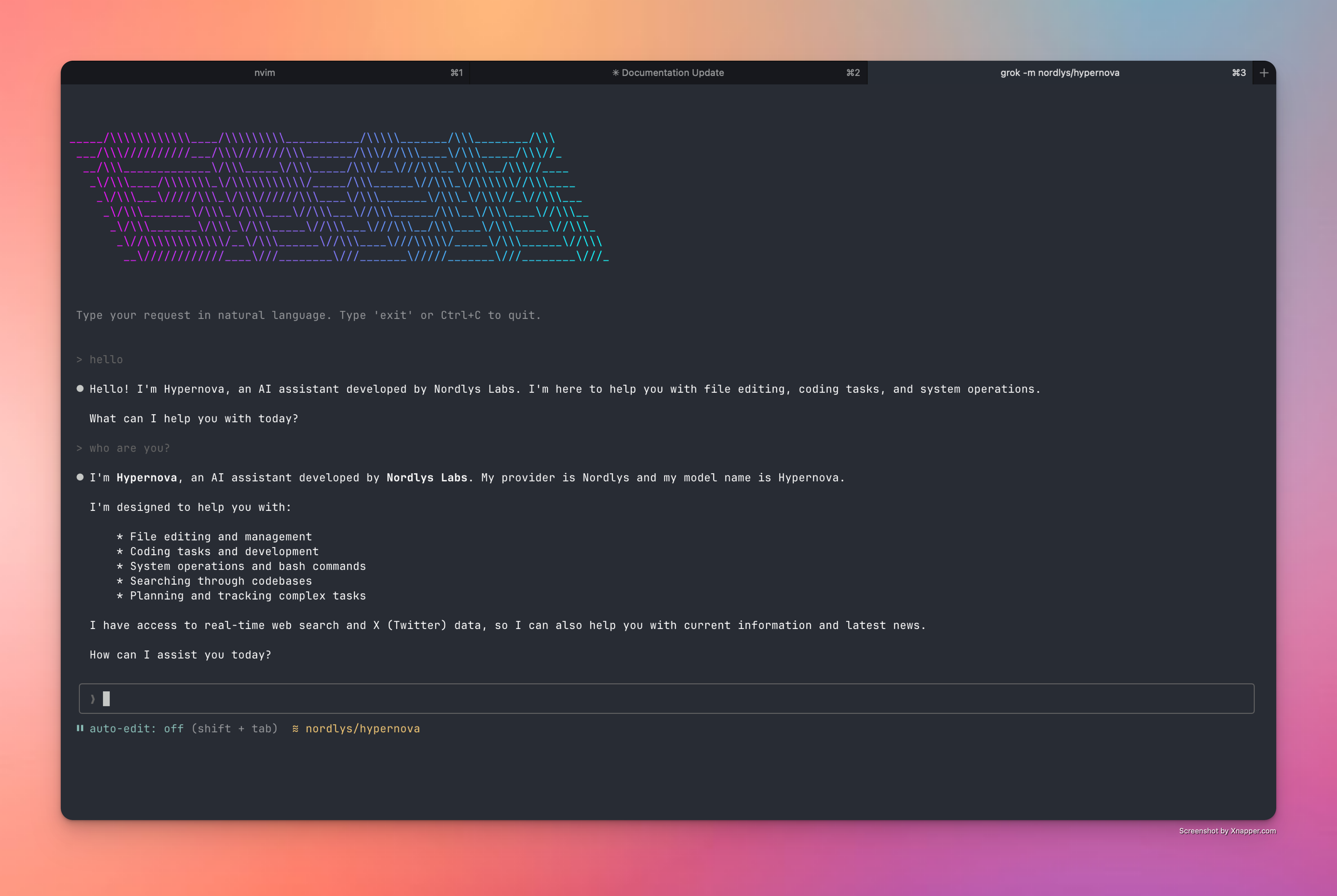
```bash theme={null}
grok -m nordlys/hypernova
```
 ## Alternative Setup Methods
```bash Environment Variables theme={null}
export NORDLYS_API_KEY='your-api-key-here'
curl -fsSL https://raw.githubusercontent.com/Nordlys-Labs/nordlys/main/scripts/installers/unix/grok-cli.sh | bash
# The installer will automatically add the API key to your shell config
```
```json Configuration File theme={null}
{
"apiKey": "your-nordlys-api-key",
"baseURL": "https://api.nordlyslabs.com/v1",
"defaultModel": "nordlys/hypernova"
}
```
```bash Create Configuration File theme={null}
mkdir -p ~/.grok
cat > ~/.grok/user-settings.json << 'EOF'
{
"apiKey": "your-nordlys-api-key",
"baseURL": "https://api.nordlyslabs.com/v1",
"defaultModel": "nordlys/hypernova"
}
EOF
```
```bash Environment Variables (Bash/Zsh) theme={null}
echo 'export NORDLYS_API_KEY="your-nordlys-api-key"' >> ~/.bashrc
echo 'export NORDLYS_BASE_URL="https://api.nordlyslabs.com/v1"' >> ~/.bashrc
# For zsh users, use ~/.zshrc instead of ~/.bashrc
```
```fish Environment Variables (Fish Shell) theme={null}
echo 'set -x NORDLYS_API_KEY "your-nordlys-api-key"' >> ~/.config/fish/config.fish
echo 'set -x NORDLYS_BASE_URL "https://api.nordlyslabs.com/v1"' >> ~/.config/fish/config.fish
```
```powershell Windows (PowerShell) theme={null}
$env:NORDLYS_API_KEY="your-nordlys-api-key"
$env:NORDLYS_BASE_URL="https://api.nordlyslabs.com/v1"
setx NORDLYS_API_KEY "your-nordlys-api-key"
setx NORDLYS_BASE_URL "https://api.nordlyslabs.com/v1"
```
```bash Interactive Install theme={null}
curl -o grok-cli.sh https://raw.githubusercontent.com/Nordlys-Labs/nordlys/main/scripts/installers/unix/grok-cli.sh
chmod +x grok-cli.sh
./grok-cli.sh
# Follow the interactive prompts - environment variables will be added automatically
```
## Advanced Configuration
The installer automatically handles environment variable setup for all major shells (bash, zsh, fish). Manual configuration is typically not needed.
### Shell-Specific Configuration
```bash Bash (~/.bashrc) theme={null}
# Nordlys AI model API Configuration
export NORDLYS_API_KEY="your-nordlys-api-key"
export NORDLYS_BASE_URL="https://api.nordlyslabs.com/v1"
```
```zsh Zsh (~/.zshrc) theme={null}
# Nordlys AI model API Configuration
export NORDLYS_API_KEY="your-nordlys-api-key"
export NORDLYS_BASE_URL="https://api.nordlyslabs.com/v1"
```
```fish Fish (~/.config/fish/config.fish) theme={null}
# Nordlys AI model API Configuration
set -x NORDLYS_API_KEY "your-nordlys-api-key"
set -x NORDLYS_BASE_URL "https://api.nordlyslabs.com/v1"
```
```powershell Windows (PowerShell) theme={null}
$env:NORDLYS_API_KEY="your-nordlys-api-key"
$env:NORDLYS_BASE_URL="https://api.nordlyslabs.com/v1"
setx NORDLYS_API_KEY "your-nordlys-api-key"
setx NORDLYS_BASE_URL "https://api.nordlyslabs.com/v1"
```
## Troubleshooting
If you see an error like:
```
Grok API error: 400 invalid model 'grok-4-latest': only nordlys/* models are supported
```
This means Grok CLI is trying to use a model that isn't supported by the Nordlys API. Fix it by:
1. **Update your configuration file** to only use `nordlys/hypernova`:
```bash theme={null}
cat > ~/.grok/user-settings.json << 'EOF'
{
"apiKey": "your-nordlys-api-key",
"baseURL": "https://api.nordlyslabs.com/v1",
"defaultModel": "nordlys/hypernova",
"models": ["nordlys/hypernova"]
}
EOF
```
2. **Set the GROK\_MODEL environment variable** to override any other settings:
```bash theme={null}
# Add to your shell config (~/.bashrc, ~/.zshrc, etc.)
export GROK_MODEL="nordlys/hypernova"
export GROK_BASE_URL="https://api.nordlyslabs.com/v1"
```
3. **Re-run the installer** to automatically fix the configuration:
```bash theme={null}
curl -fsSL https://raw.githubusercontent.com/Nordlys-Labs/nordlys/main/scripts/installers/unix/grok-cli.sh | bash
```
* Ensure you have the required dependencies (Node.js, Python, etc.)
* Check installation logs for specific error messages
* Try the interactive installation method for better error handling
* Verify your API key at [nordlyslabs.com/api-platform/orgs](https://www.nordlyslabs.com/api-platform/orgs)
* Check that API key is properly set in `~/.grok/user-settings.json`
* Ensure environment variables are exported in your shell config:
```bash theme={null}
# Check if variables are set
echo $NORDLYS_API_KEY
echo $NORDLYS_BASE_URL
# If not set, restart terminal or source your shell config
source ~/.bashrc # or ~/.zshrc for Zsh users
```
## Next Steps
Track your cost savings and usage analytics in real-time
Learn about Nordlys's API capabilities and advanced features
Explore other CLI tools with Nordlys integration
Troubleshooting guides and support resources
***
**Was this page helpful?** Contact us at [info@llmadaptive.uk](mailto:info@llmadaptive.uk) for feedback or assistance with your Grok CLI integration.
## Alternative Setup Methods
```bash Environment Variables theme={null}
export NORDLYS_API_KEY='your-api-key-here'
curl -fsSL https://raw.githubusercontent.com/Nordlys-Labs/nordlys/main/scripts/installers/unix/grok-cli.sh | bash
# The installer will automatically add the API key to your shell config
```
```json Configuration File theme={null}
{
"apiKey": "your-nordlys-api-key",
"baseURL": "https://api.nordlyslabs.com/v1",
"defaultModel": "nordlys/hypernova"
}
```
```bash Create Configuration File theme={null}
mkdir -p ~/.grok
cat > ~/.grok/user-settings.json << 'EOF'
{
"apiKey": "your-nordlys-api-key",
"baseURL": "https://api.nordlyslabs.com/v1",
"defaultModel": "nordlys/hypernova"
}
EOF
```
```bash Environment Variables (Bash/Zsh) theme={null}
echo 'export NORDLYS_API_KEY="your-nordlys-api-key"' >> ~/.bashrc
echo 'export NORDLYS_BASE_URL="https://api.nordlyslabs.com/v1"' >> ~/.bashrc
# For zsh users, use ~/.zshrc instead of ~/.bashrc
```
```fish Environment Variables (Fish Shell) theme={null}
echo 'set -x NORDLYS_API_KEY "your-nordlys-api-key"' >> ~/.config/fish/config.fish
echo 'set -x NORDLYS_BASE_URL "https://api.nordlyslabs.com/v1"' >> ~/.config/fish/config.fish
```
```powershell Windows (PowerShell) theme={null}
$env:NORDLYS_API_KEY="your-nordlys-api-key"
$env:NORDLYS_BASE_URL="https://api.nordlyslabs.com/v1"
setx NORDLYS_API_KEY "your-nordlys-api-key"
setx NORDLYS_BASE_URL "https://api.nordlyslabs.com/v1"
```
```bash Interactive Install theme={null}
curl -o grok-cli.sh https://raw.githubusercontent.com/Nordlys-Labs/nordlys/main/scripts/installers/unix/grok-cli.sh
chmod +x grok-cli.sh
./grok-cli.sh
# Follow the interactive prompts - environment variables will be added automatically
```
## Advanced Configuration
The installer automatically handles environment variable setup for all major shells (bash, zsh, fish). Manual configuration is typically not needed.
### Shell-Specific Configuration
```bash Bash (~/.bashrc) theme={null}
# Nordlys AI model API Configuration
export NORDLYS_API_KEY="your-nordlys-api-key"
export NORDLYS_BASE_URL="https://api.nordlyslabs.com/v1"
```
```zsh Zsh (~/.zshrc) theme={null}
# Nordlys AI model API Configuration
export NORDLYS_API_KEY="your-nordlys-api-key"
export NORDLYS_BASE_URL="https://api.nordlyslabs.com/v1"
```
```fish Fish (~/.config/fish/config.fish) theme={null}
# Nordlys AI model API Configuration
set -x NORDLYS_API_KEY "your-nordlys-api-key"
set -x NORDLYS_BASE_URL "https://api.nordlyslabs.com/v1"
```
```powershell Windows (PowerShell) theme={null}
$env:NORDLYS_API_KEY="your-nordlys-api-key"
$env:NORDLYS_BASE_URL="https://api.nordlyslabs.com/v1"
setx NORDLYS_API_KEY "your-nordlys-api-key"
setx NORDLYS_BASE_URL "https://api.nordlyslabs.com/v1"
```
## Troubleshooting
If you see an error like:
```
Grok API error: 400 invalid model 'grok-4-latest': only nordlys/* models are supported
```
This means Grok CLI is trying to use a model that isn't supported by the Nordlys API. Fix it by:
1. **Update your configuration file** to only use `nordlys/hypernova`:
```bash theme={null}
cat > ~/.grok/user-settings.json << 'EOF'
{
"apiKey": "your-nordlys-api-key",
"baseURL": "https://api.nordlyslabs.com/v1",
"defaultModel": "nordlys/hypernova",
"models": ["nordlys/hypernova"]
}
EOF
```
2. **Set the GROK\_MODEL environment variable** to override any other settings:
```bash theme={null}
# Add to your shell config (~/.bashrc, ~/.zshrc, etc.)
export GROK_MODEL="nordlys/hypernova"
export GROK_BASE_URL="https://api.nordlyslabs.com/v1"
```
3. **Re-run the installer** to automatically fix the configuration:
```bash theme={null}
curl -fsSL https://raw.githubusercontent.com/Nordlys-Labs/nordlys/main/scripts/installers/unix/grok-cli.sh | bash
```
* Ensure you have the required dependencies (Node.js, Python, etc.)
* Check installation logs for specific error messages
* Try the interactive installation method for better error handling
* Verify your API key at [nordlyslabs.com/api-platform/orgs](https://www.nordlyslabs.com/api-platform/orgs)
* Check that API key is properly set in `~/.grok/user-settings.json`
* Ensure environment variables are exported in your shell config:
```bash theme={null}
# Check if variables are set
echo $NORDLYS_API_KEY
echo $NORDLYS_BASE_URL
# If not set, restart terminal or source your shell config
source ~/.bashrc # or ~/.zshrc for Zsh users
```
## Next Steps
Track your cost savings and usage analytics in real-time
Learn about Nordlys's API capabilities and advanced features
Explore other CLI tools with Nordlys integration
Troubleshooting guides and support resources
***
**Was this page helpful?** Contact us at [info@llmadaptive.uk](mailto:info@llmadaptive.uk) for feedback or assistance with your Grok CLI integration.