> ## Documentation Index
> Fetch the complete documentation index at: https://docs.nordlyslabs.com/llms.txt
> Use this file to discover all available pages before exploring further.
# OpenCode Integration
> Configure OpenCode to use Nordlys's Mixture of Models model for lab-grade coding quality and lower cost
Configure OpenCode to use Nordlys's Mixture of Models model for high-quality coding results.
**Get the best AI specialist for every prompt** with a Mixture of Models model. Works
as a custom integration in OpenCode.
## Get Your Nordlys API Key
[Sign up here](https://nordlyslabs.com/api-platform/orgs) to create an account and generate your API key.
## Quick Setup
```bash macOS/Linux theme={null}
curl -o opencode.sh https://raw.githubusercontent.com/Nordlys-Labs/nordlys/main/scripts/installers/unix/opencode.sh
chmod +x opencode.sh
```
```powershell Windows (PowerShell) theme={null}
Invoke-WebRequest -Uri https://raw.githubusercontent.com/Nordlys-Labs/nordlys/main/scripts/installers/windows/opencode.ps1 -OutFile opencode.ps1
```
```bash macOS/Linux theme={null}
./opencode.sh
```
```powershell Windows (PowerShell) theme={null}
.\opencode.ps1
```
The installer will prompt for your API key and configure OpenCode with Nordlys.
Config is saved to `~/.config/opencode/opencode.json`.
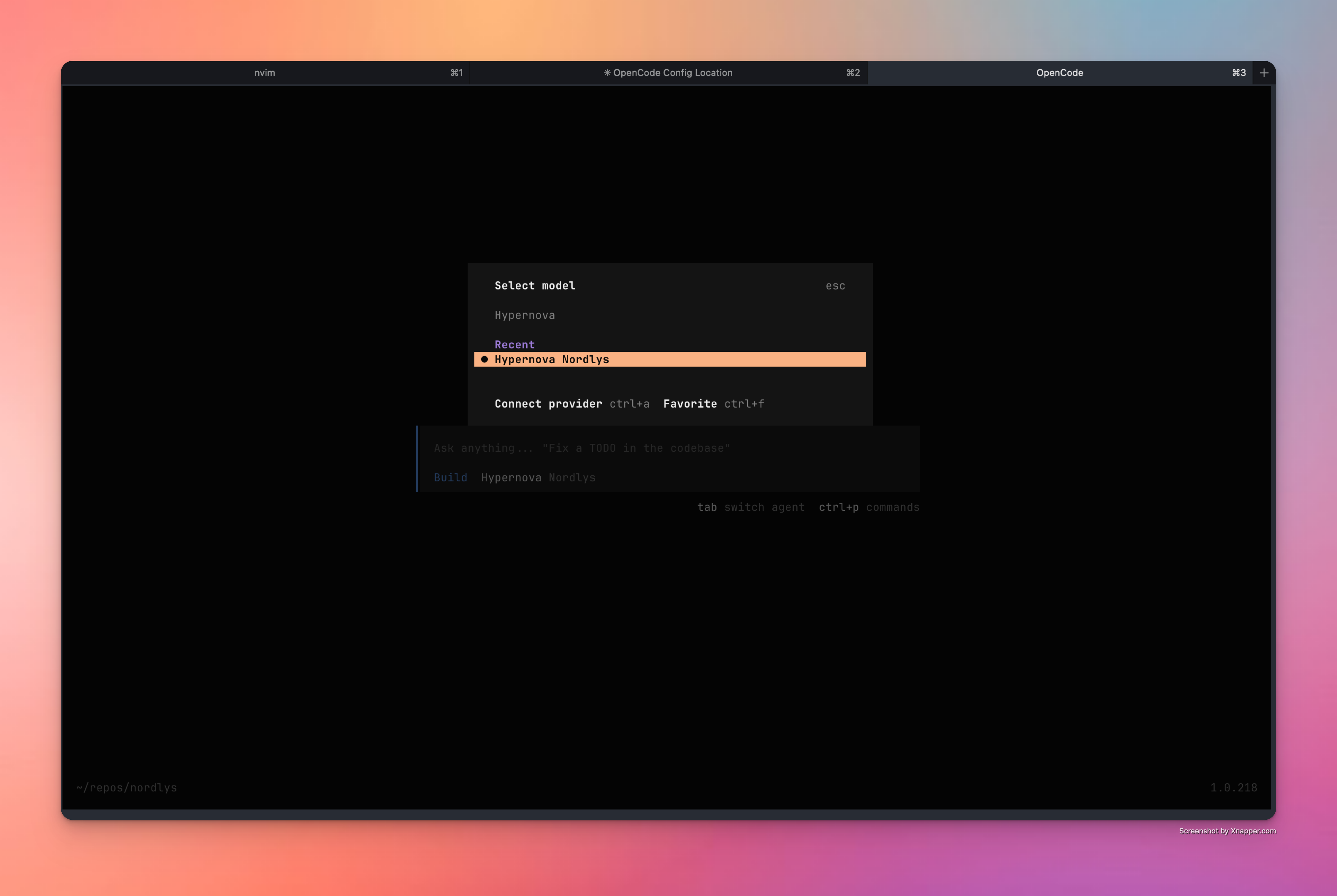
Start OpenCode and run `/models`, then select **"Hypernova Nordlys"**.
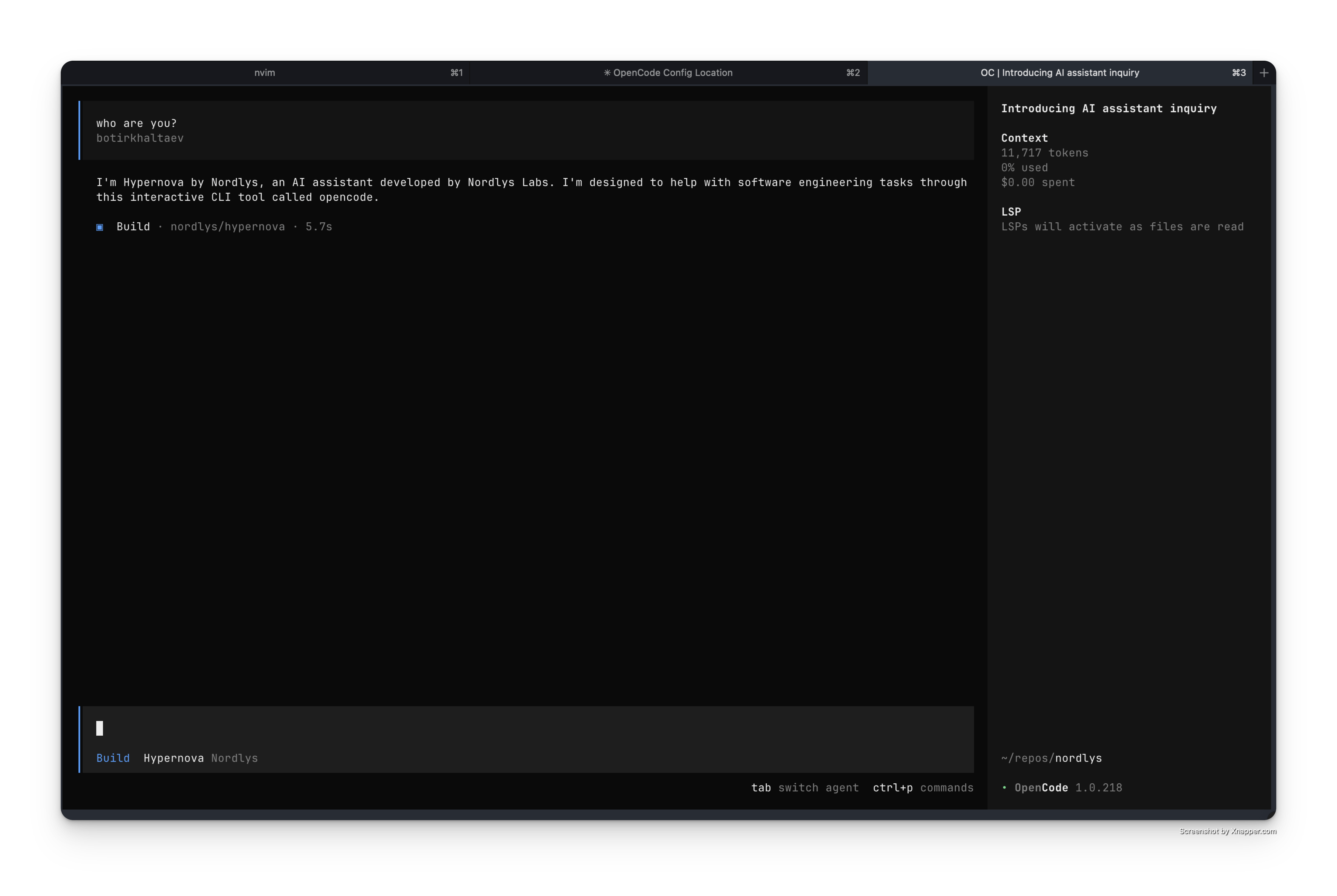
 Hypernova is now active. Start chatting to verify the setup.
 ## Alternative Setup Methods
```bash Environment Variables theme={null}
export NORDLYS_API_KEY='your-api-key-here'
./opencode.sh
```
```powershell Environment Variables (PowerShell) theme={null}
$env:NORDLYS_API_KEY="your-api-key-here"
.\opencode.ps1
```
```json Manual Configuration theme={null}
// Create ~/.config/opencode/opencode.json
{
"$schema": "https://opencode.ai/config.json",
"provider": {
"nordlys": {
"npm": "@ai-sdk/openai-compatible",
"name": "Nordlys",
"options": {
"baseURL": "https://api.nordlyslabs.com/v1",
"apiKey": "your-nordlys-api-key"
},
"models": {
"nordlys/hypernova": {
"name": "Hypernova"
}
}
}
},
"model": "nordlys/hypernova"
}
```
## Troubleshooting
* Check `opencode.json` syntax is valid JSON
* Ensure integration ID "nordlys" matches between auth and config
* Run `opencode auth list` to confirm credentials were added
* Regenerate API key from [Nordlys dashboard](https://nordlyslabs.com/api-platform/orgs)
* Verify integration ID matches exactly between auth and config
* Try re-running `opencode auth login` and selecting "Other"
## Next Steps
Track your usage analytics in real-time
Learn about Nordlys's API capabilities and advanced features
Set up Nordlys with Claude Code, Cline, and other AI development tools
Troubleshooting guides and support resources
***
**Was this page helpful?** Contact us at
[info@llmadaptive.uk](mailto:info@llmadaptive.uk) for feedback or assistance
with your OpenCode integration.
## Alternative Setup Methods
```bash Environment Variables theme={null}
export NORDLYS_API_KEY='your-api-key-here'
./opencode.sh
```
```powershell Environment Variables (PowerShell) theme={null}
$env:NORDLYS_API_KEY="your-api-key-here"
.\opencode.ps1
```
```json Manual Configuration theme={null}
// Create ~/.config/opencode/opencode.json
{
"$schema": "https://opencode.ai/config.json",
"provider": {
"nordlys": {
"npm": "@ai-sdk/openai-compatible",
"name": "Nordlys",
"options": {
"baseURL": "https://api.nordlyslabs.com/v1",
"apiKey": "your-nordlys-api-key"
},
"models": {
"nordlys/hypernova": {
"name": "Hypernova"
}
}
}
},
"model": "nordlys/hypernova"
}
```
## Troubleshooting
* Check `opencode.json` syntax is valid JSON
* Ensure integration ID "nordlys" matches between auth and config
* Run `opencode auth list` to confirm credentials were added
* Regenerate API key from [Nordlys dashboard](https://nordlyslabs.com/api-platform/orgs)
* Verify integration ID matches exactly between auth and config
* Try re-running `opencode auth login` and selecting "Other"
## Next Steps
Track your usage analytics in real-time
Learn about Nordlys's API capabilities and advanced features
Set up Nordlys with Claude Code, Cline, and other AI development tools
Troubleshooting guides and support resources
***
**Was this page helpful?** Contact us at
[info@llmadaptive.uk](mailto:info@llmadaptive.uk) for feedback or assistance
with your OpenCode integration.