

Benefits of Using Gemini CLI with Nordlys
When you integrate Gemini CLI with Nordlys, you unlock powerful capabilities:- Mixture of Models Activation: The right specialists activate per prompt
- Cost Optimization: Lower costs without sacrificing quality
- Consistent Quality: Stable outputs across coding tasks
- Usage Analytics: Monitor model usage, costs, and performance in real-time
- Simplified Configuration: Single API key for all Gemini model variants
Get Your Nordlys API Key
Sign up here to create an account and generate your API key.Quick Setup
Run Automated Installer
- Install Gemini CLI if not present (via npm)
- Configure environment variables for Nordlys Nordlys model
- Add configuration to your shell profile (~/.bashrc, ~/.zshrc, etc.)
- Verify the installation
Verify Configuration
Start Using
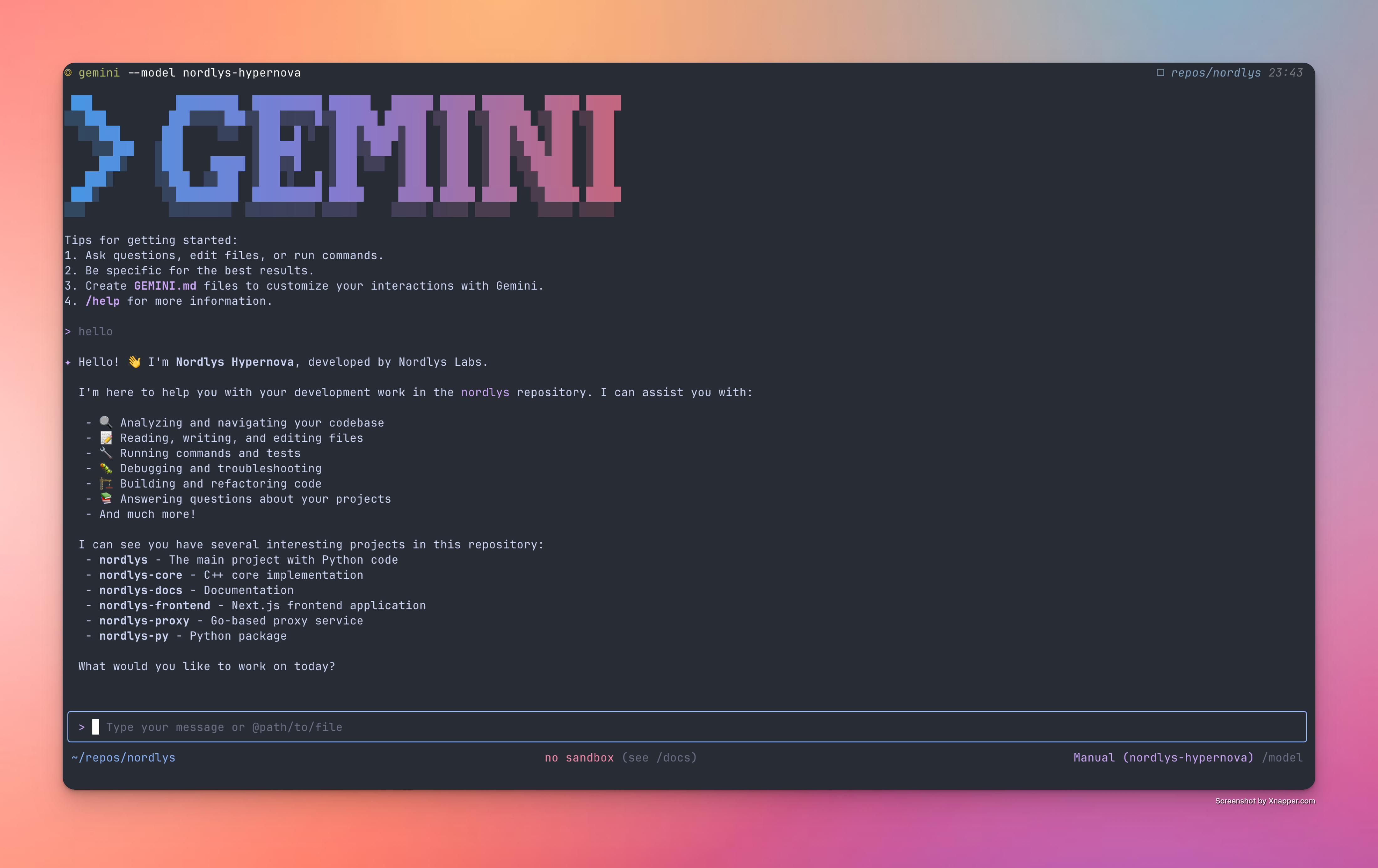
Manual Installation
If you prefer to set up Gemini CLI manually or need more control over the installation process:Step 1: Install Gemini CLI
Step 2: Configure Environment Variables
Step 3: Apply Configuration
Step 4: Verify Installation
Alternative Setup Methods
Advanced Configuration
Model Selection
Set the model ID explicitly when needed:Usage Examples
Troubleshooting
Installation Issues
Installation Issues
Problem: Gemini CLI installation failsSolutions:
- Ensure Node.js 18+ is installed:
node --version - Install Node.js if needed:
- Check npm permissions:
npm config get prefix - Try with sudo (not recommended):
sudo npm install -g @google/gemini-cli
Authentication Errors
Authentication Errors
Problem: “Unauthorized” or “Invalid API key” errorsSolutions:
- Verify your API key at nordlyslabs.com/api-platform/orgs
- Check environment variables are set:
- Ensure variables are exported in your shell config:
- Restart your terminal if changes were made to shell config
- Verify the base URL is correct:
https://api.nordlyslabs.com/v1
Connection Errors
Connection Errors
Problem: Cannot connect to Nordlys APISolutions:
- Check internet connectivity
- Verify base URL is correct:
echo $GOOGLE_GEMINI_BASE_URL - Test API directly:
- Check if your network/firewall blocks the API endpoint
Model ID Issues
Model ID Issues
Problem: Requests fail due to a model ID errorSolutions:
- Set the model ID explicitly:
- Confirm the value is spelled exactly and matches the docs.
Performance Issues
Performance Issues
Problem: Slow response times or timeoutsSolutions:
- Verify rate limits aren’t exceeded
- Check your internet connection speed
- Reduce prompt size or request complexity
Uninstallation
If you need to remove Gemini CLI or revert to Google’s API:1
Remove Gemini CLI
2
Remove Environment Variables
Edit your shell config file and remove these lines:
3
Reload Shell Configuration
Next Steps
Monitor Usage & Savings
Track your cost savings and usage analytics in real-time
API Documentation
Learn about Nordlys’s API capabilities and advanced features
More CLI Tools
Explore other CLI tools with Nordlys integration
Advanced Model selection
Learn about Nordlys Mixture of Models and load balancing
Was this page helpful? Contact us at [email protected] for feedback or assistance with your Gemini CLI integration.