

Get Your Nordlys API Key
Sign up here to create an account and generate your API key.Quick Setup
Install Extension
Open VS Code Extensions (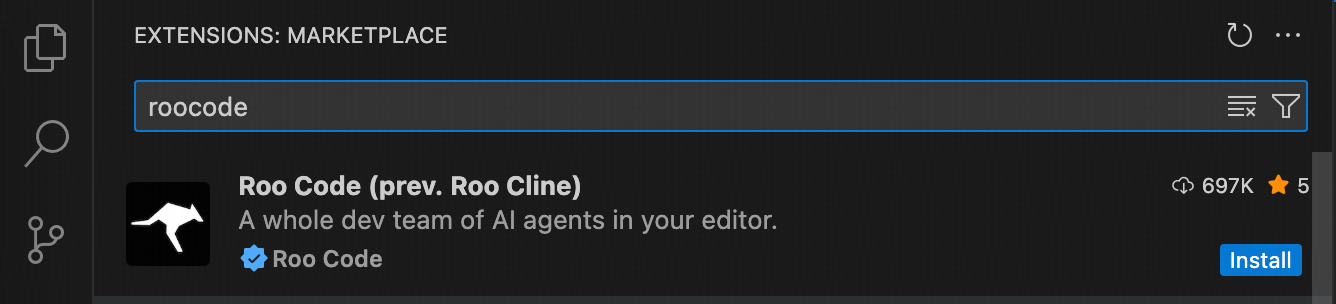
Cmd+Shift+X / Ctrl+Shift+X), search for “roocode”, and click Install.Trust Publisher
Click “Trust Publisher & Install” when prompted.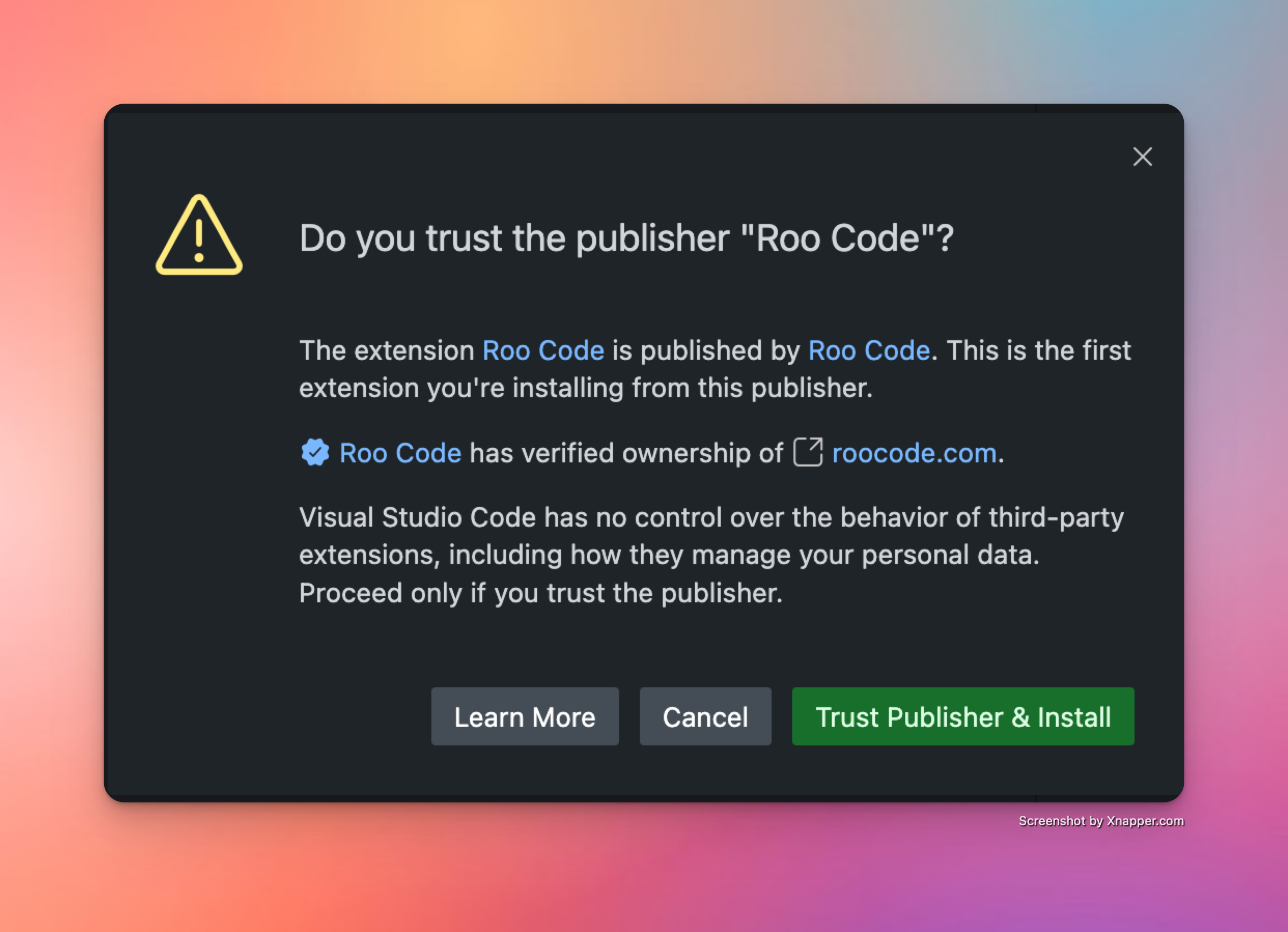
Skip Account Creation
On the welcome screen, click “or use without an account” to configure with your own API key.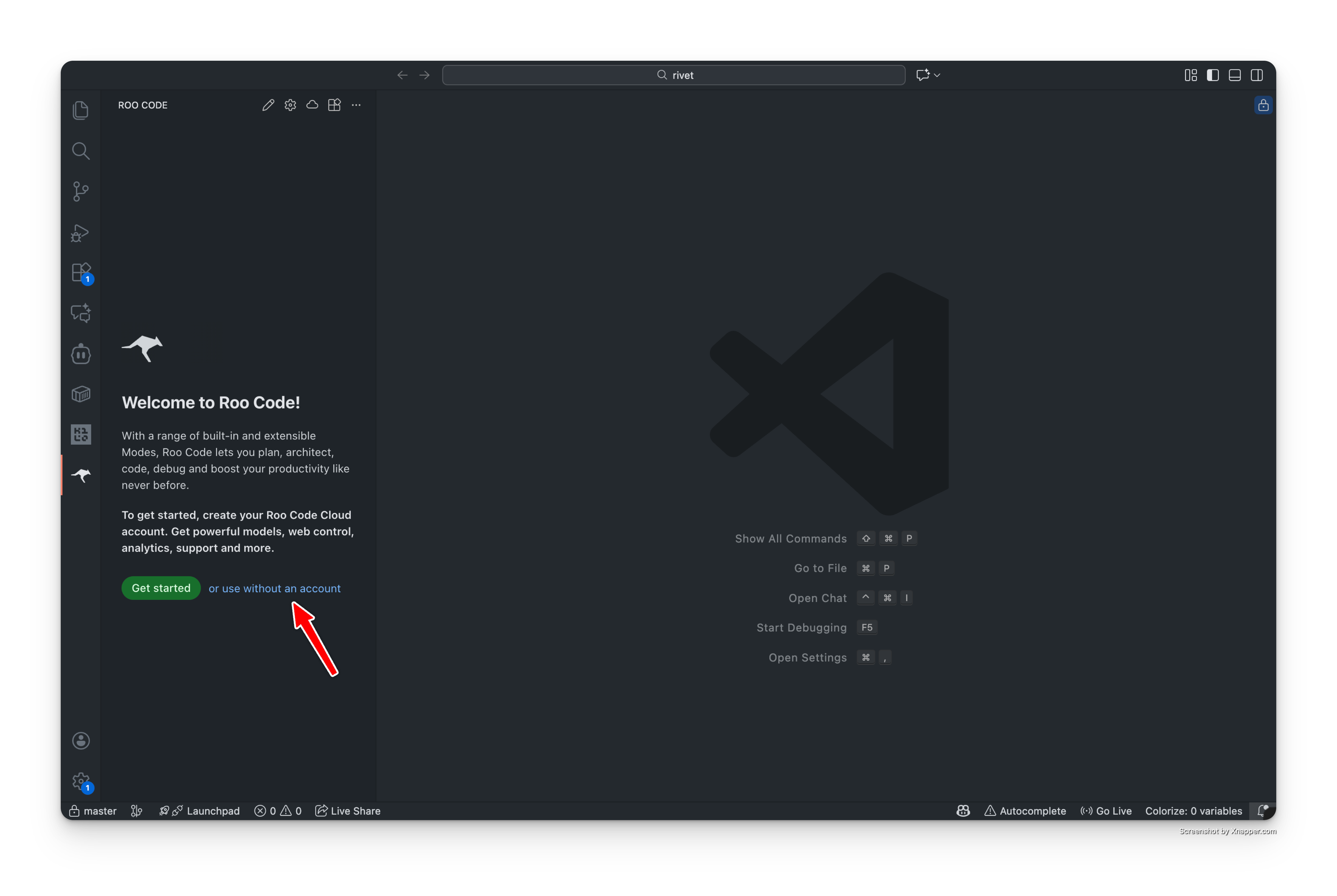
Configure Nordlys
Select “3rd-party Provider” and configure: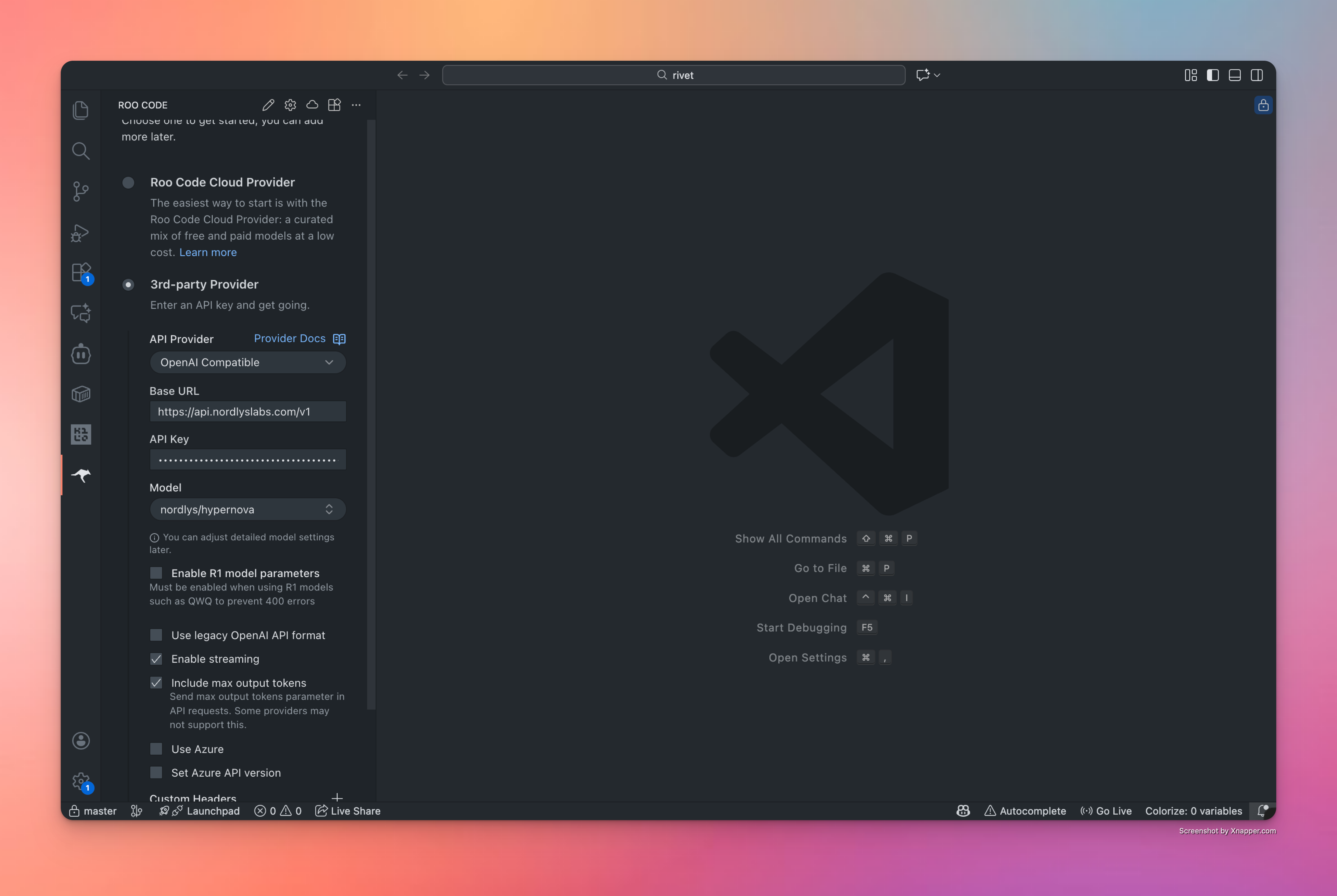
- API Provider:
OpenAI Compatible - Base URL:
https://api.nordlyslabs.com/v1 - API Key: Your Nordlys API key
- Model:
nordlys/hypernova
Start Coding
Hypernova is now active. Start chatting to verify the setup.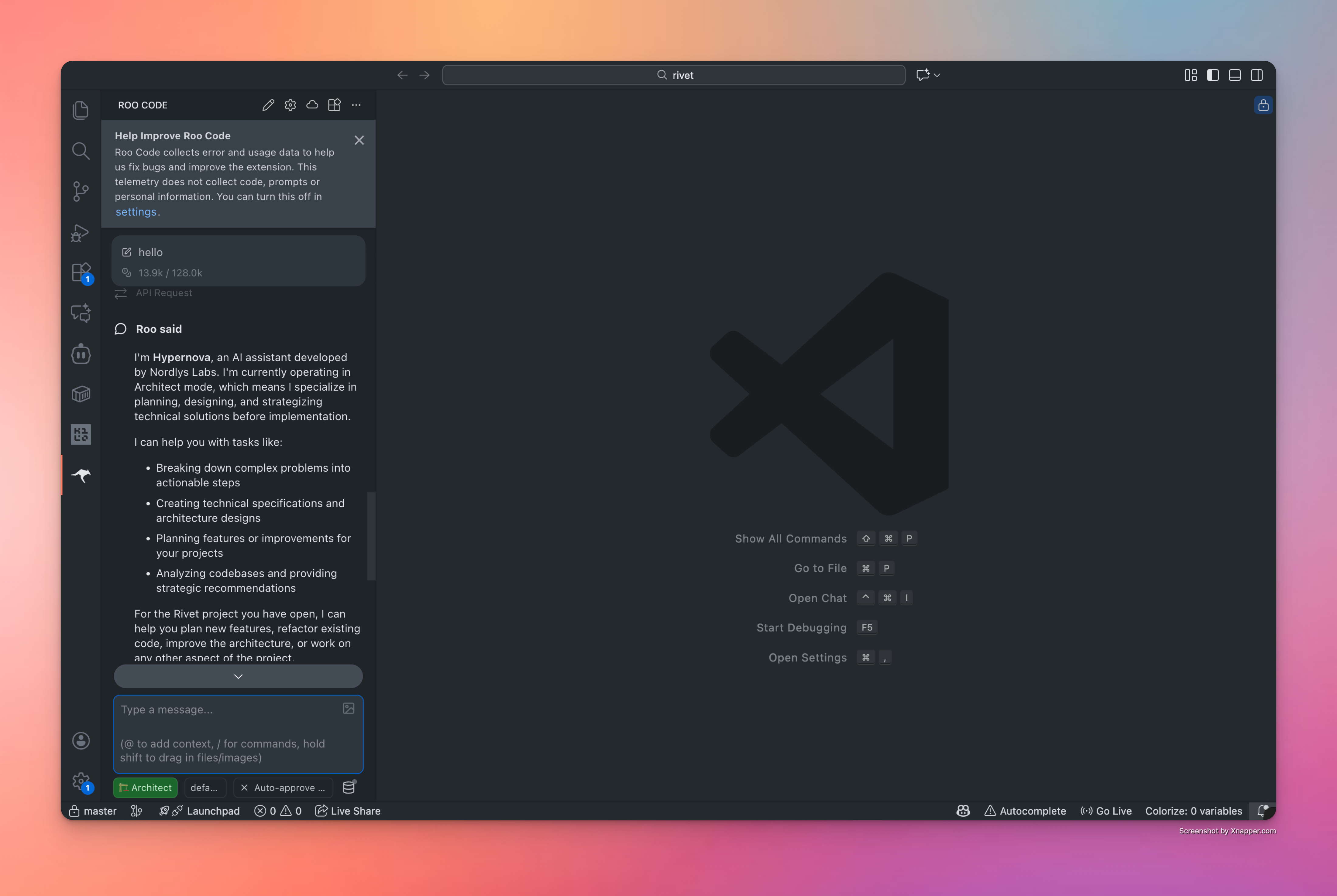
Alternative Setup Methods
Troubleshooting
Connection Issues
Connection Issues
- Verify your API key at nordlyslabs.com/api-platform/orgs
- Check that Base URL is set to
https://api.nordlyslabs.com/v1 - Restart VS Code after configuration changes
Project Analysis
Project Analysis
- Ensure project is properly opened in VS Code workspace
- Use
nordlys/hypernovaas the model for intelligent selection - Test with a simple analysis task after setup
Next Steps
Monitor Usage
Track your usage analytics in real-time
API Documentation
Learn about Nordlys’s API capabilities and advanced features
VS Code Extensions
Explore other AI development tools with Nordlys integration
Get Support
Troubleshooting guides and support resources
Was this page helpful? Contact us at
[email protected] for feedback or assistance
with your Roo Code integration.